

Sharing Assistants with API Keys
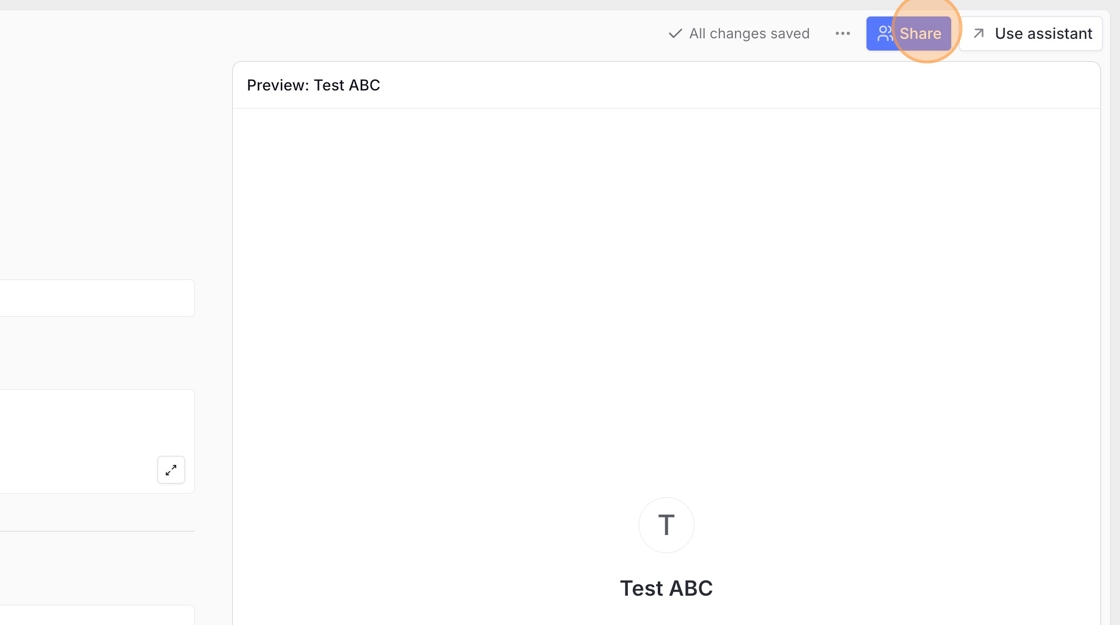
An admin needs to create the API key and share the assistant with the API key. Invite an admin as an editor to your assistant with the “Share” button in the top right corner (skip this step if you are a Langdock admin yourself).
How to create an API key
Navigate to your Langdock workspace: https://app.langdock.com/chat
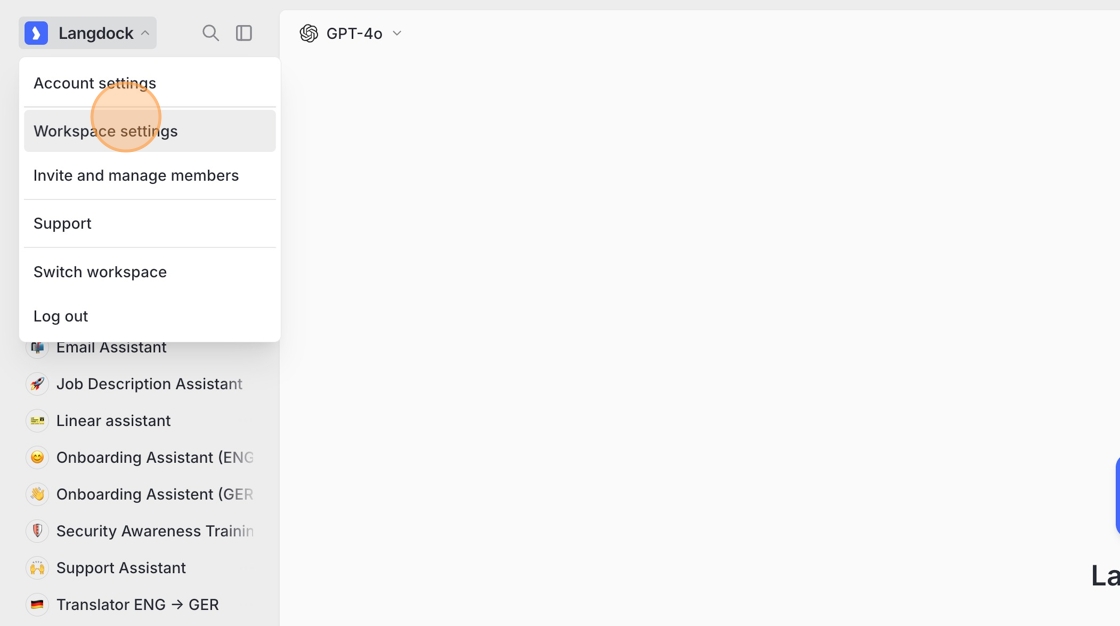
Go to the workspace settings.
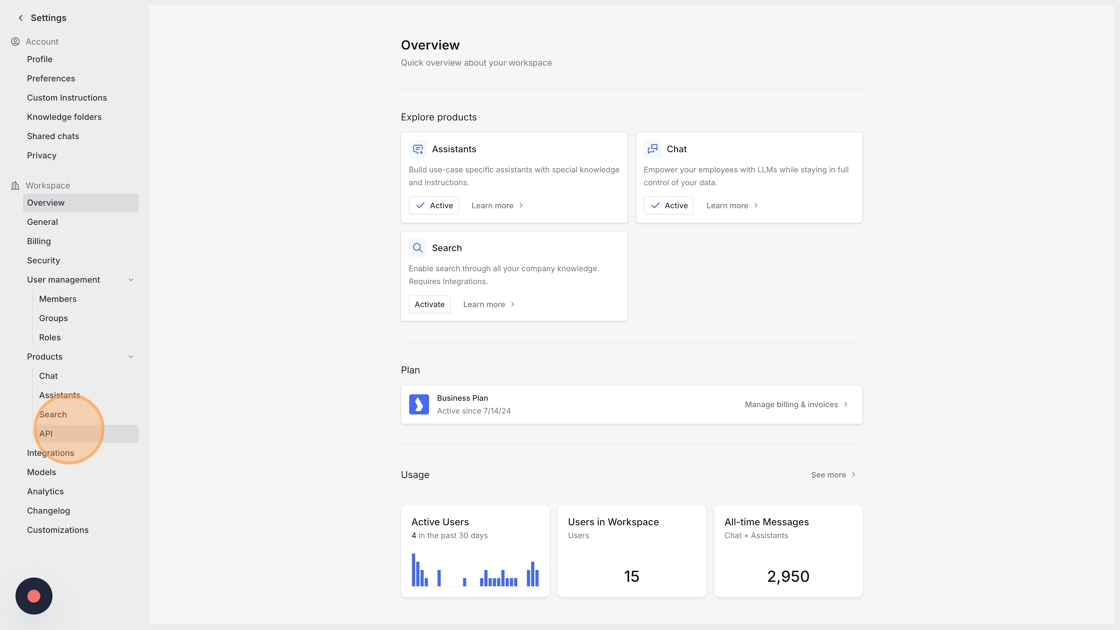
Click on “API” under products.
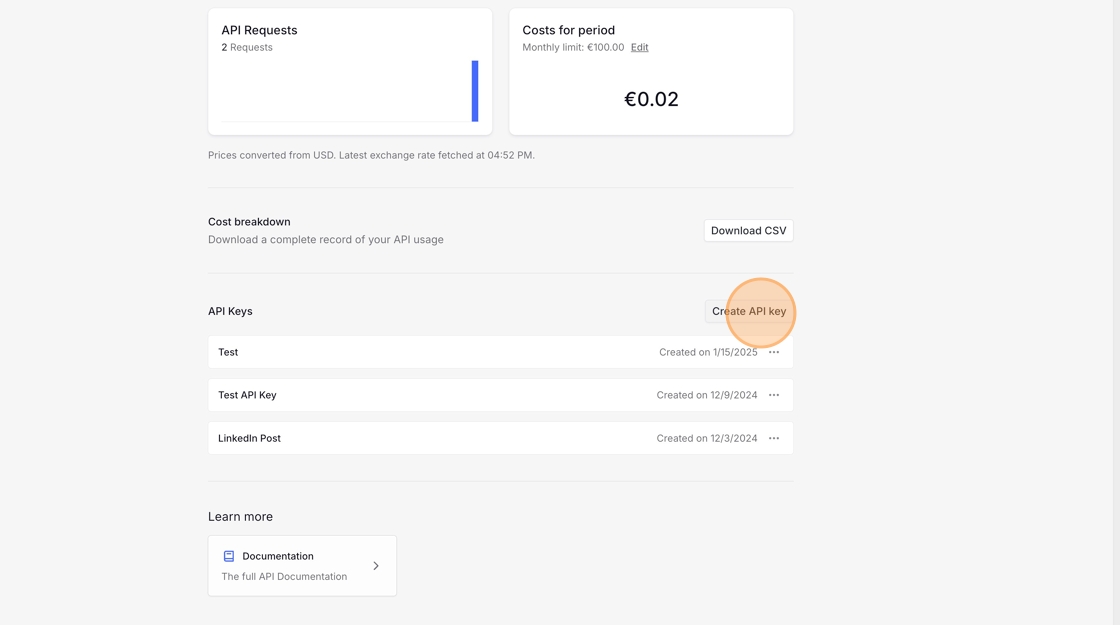
Create a new API key.
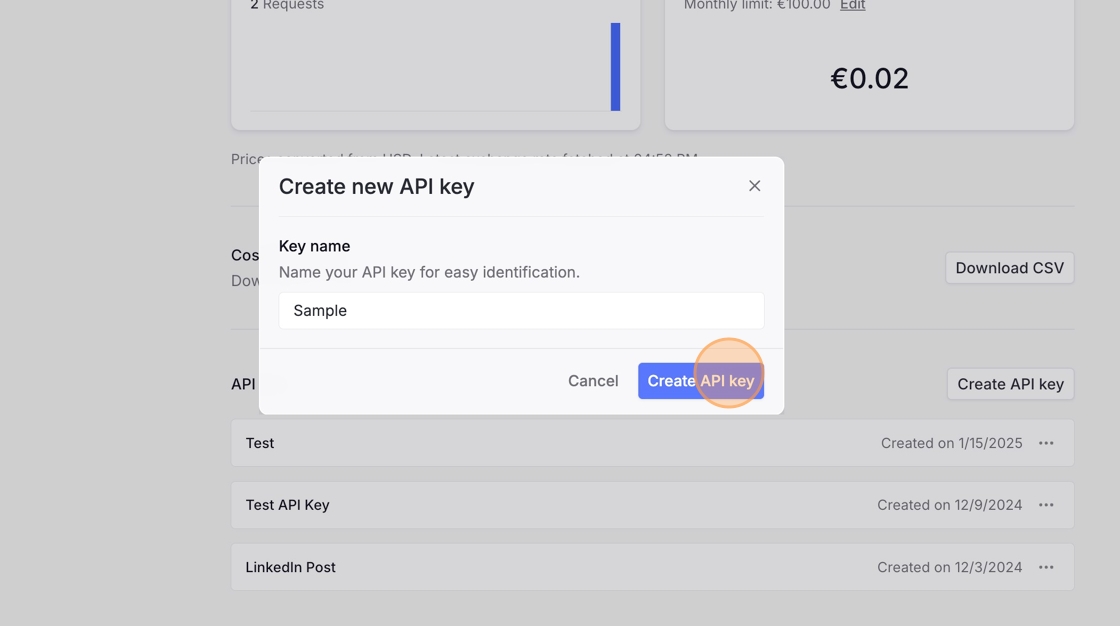
Enter a name for the key and click “Create API key”.
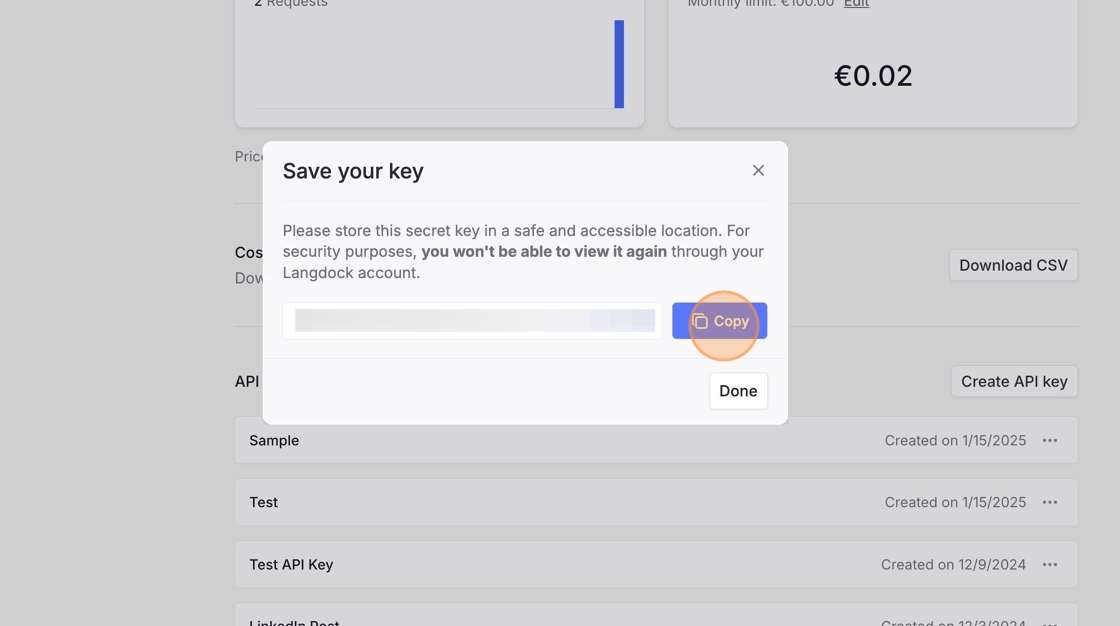
Copy your API Key to the clipboard.
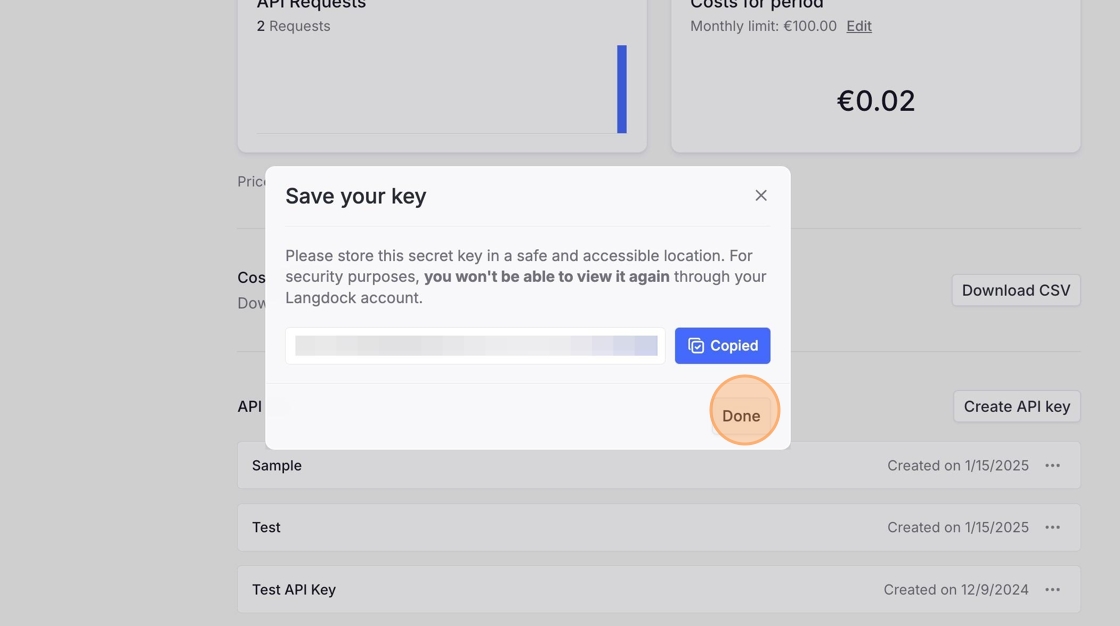
Click “Done” to finish.
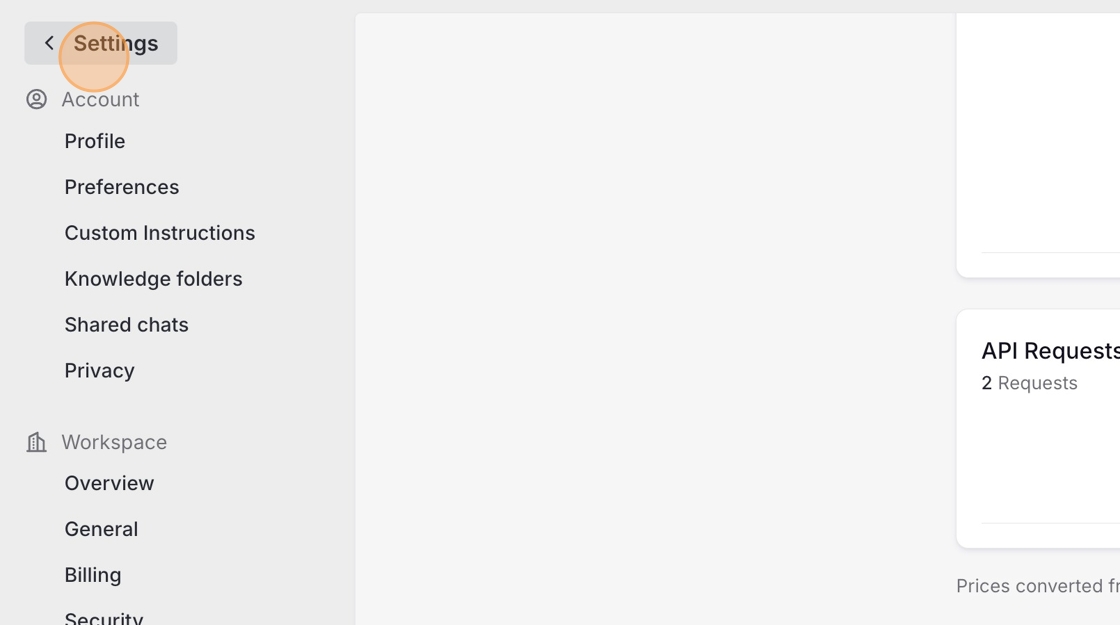
Leave the settings by clicking on “Settings” on the top left.
How to share an assistant with the API key
Only admins can connect an assistant with an API key. To find the API key in the “Share” menu, you have to be an admin or ask an admin to perform the relevant steps for you.
Click “Assistants” in the Langdock app.
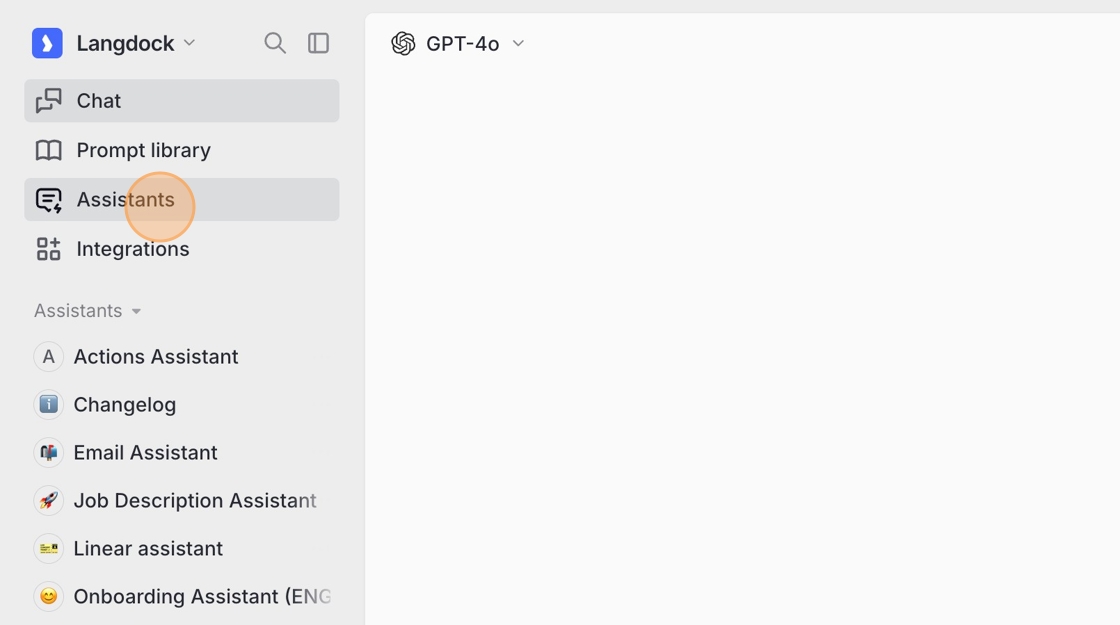
Create a new assistant (if needed).
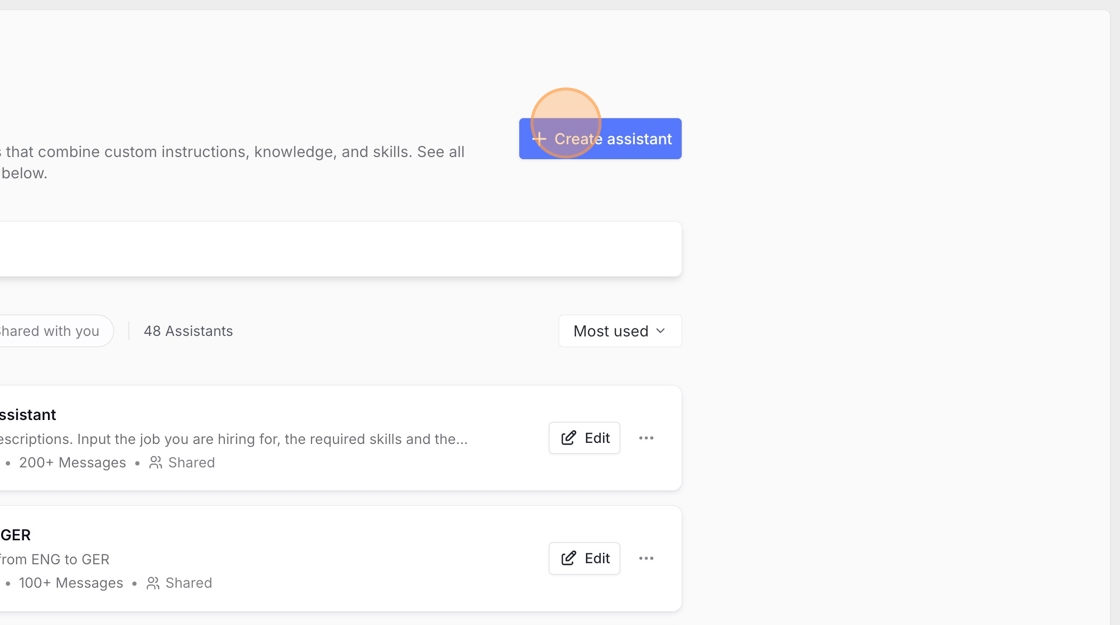
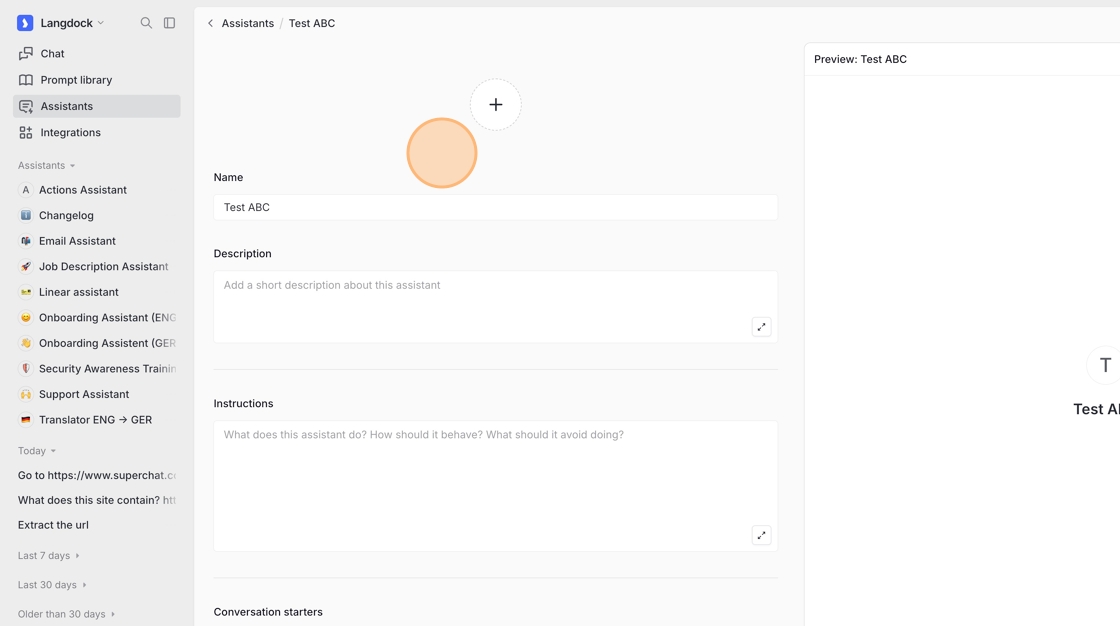
Configure your assistant. To save it, at least enter a name.
Click “Share” for the assistant.
Search for the name of your API key in the Share dialog.
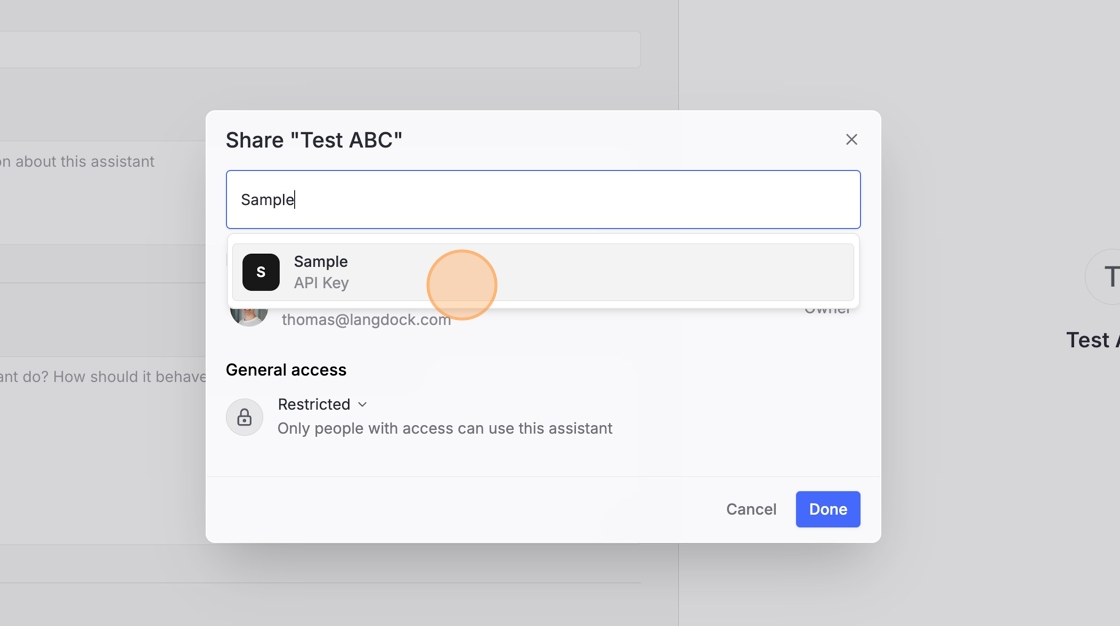
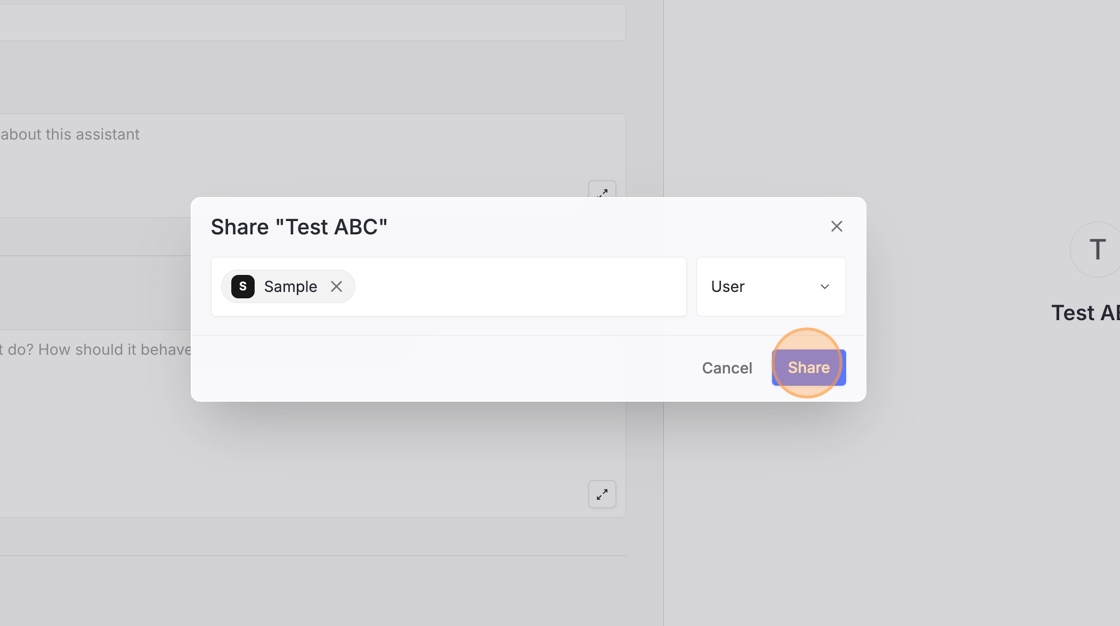
Click “Share” next to the API key entry.
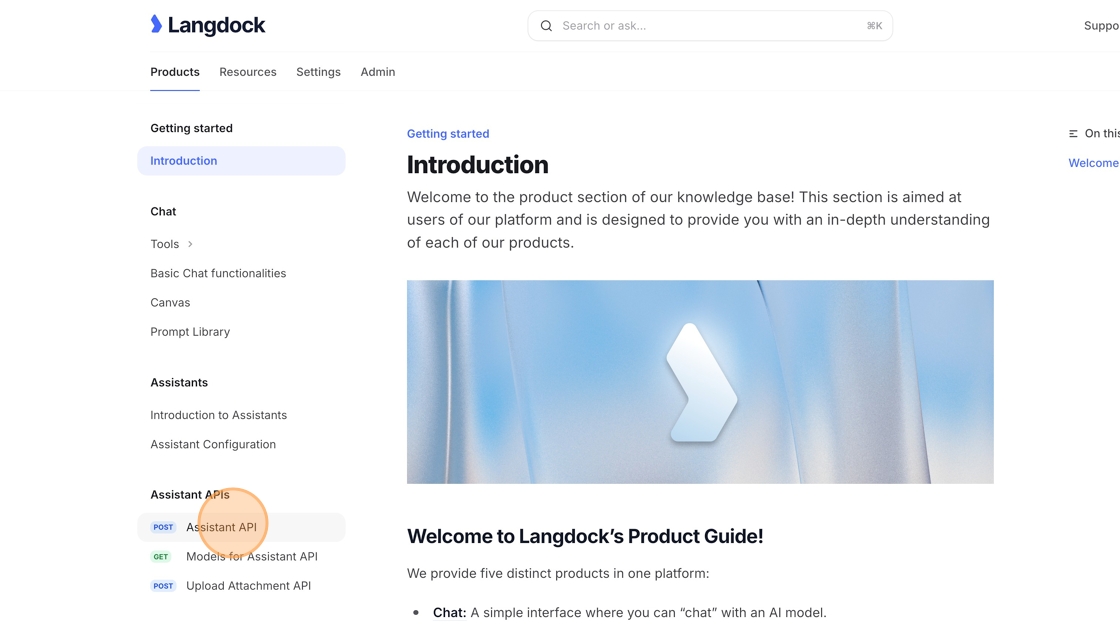
Open the Assistant API documentation at https://docs.langdock.com/ and click “Assistant API” then “Try it”.
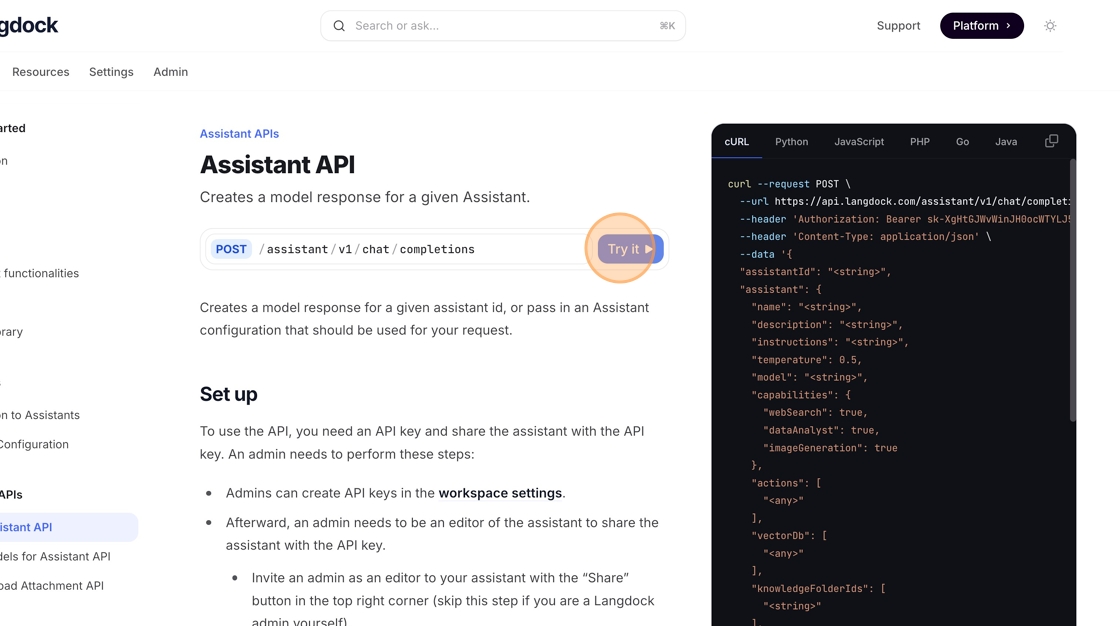
In the API docs “Try it” panel, paste the API Key you copied earlier.
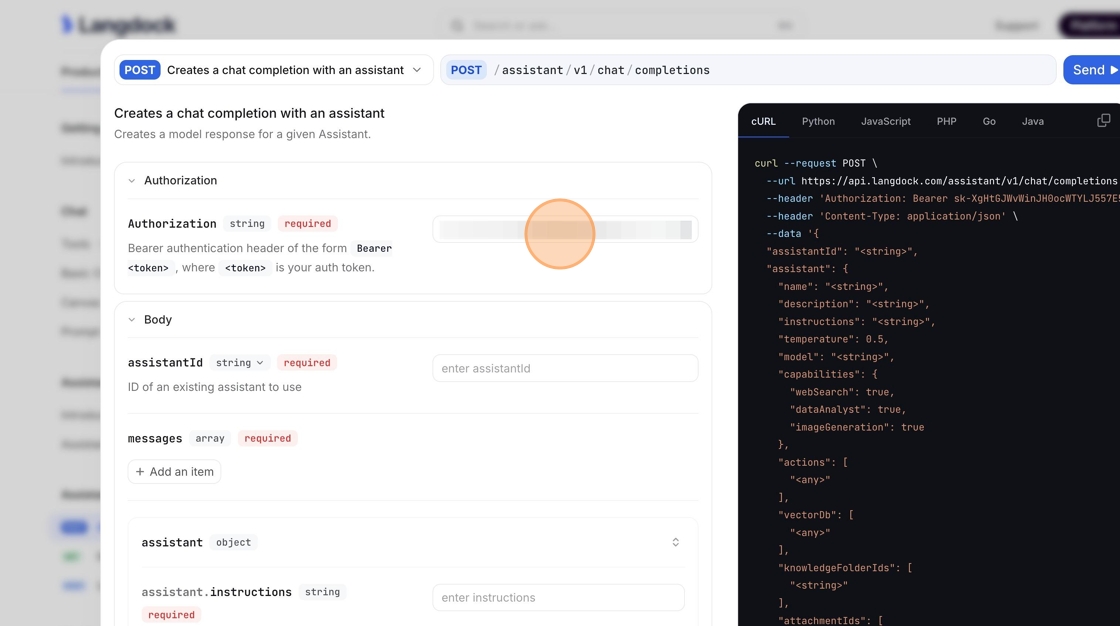
Switch back to the Langdock application and copy the Assistant ID from the URL. The assistant edit URL is structured like: https://app.langdock.com/assistants/ASSISTANT_ID/edit You only need the ASSISTANT_ID.
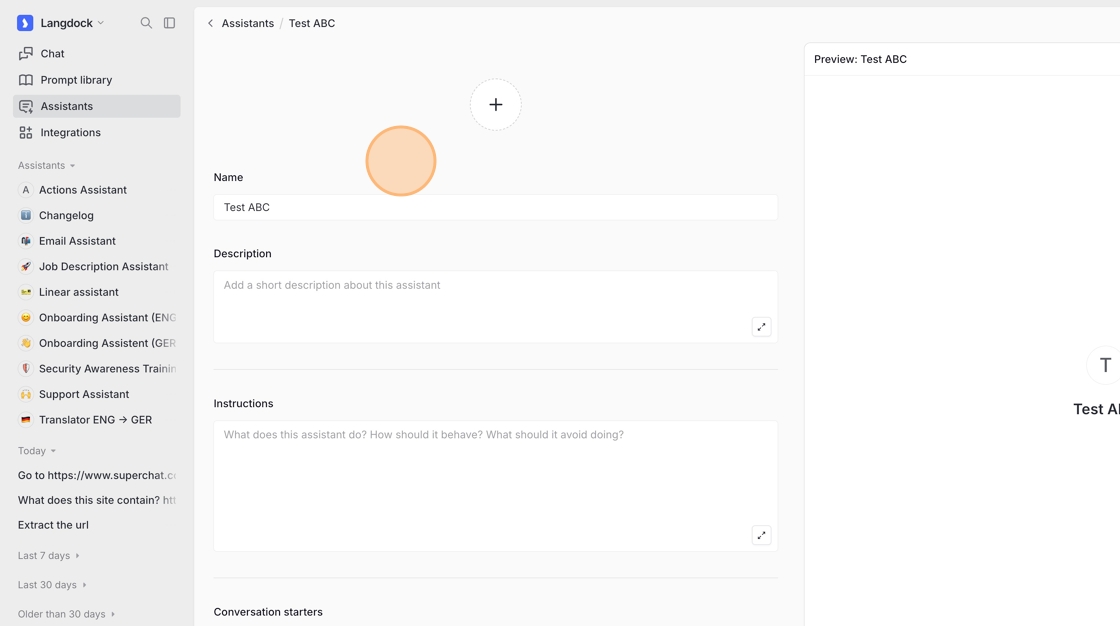
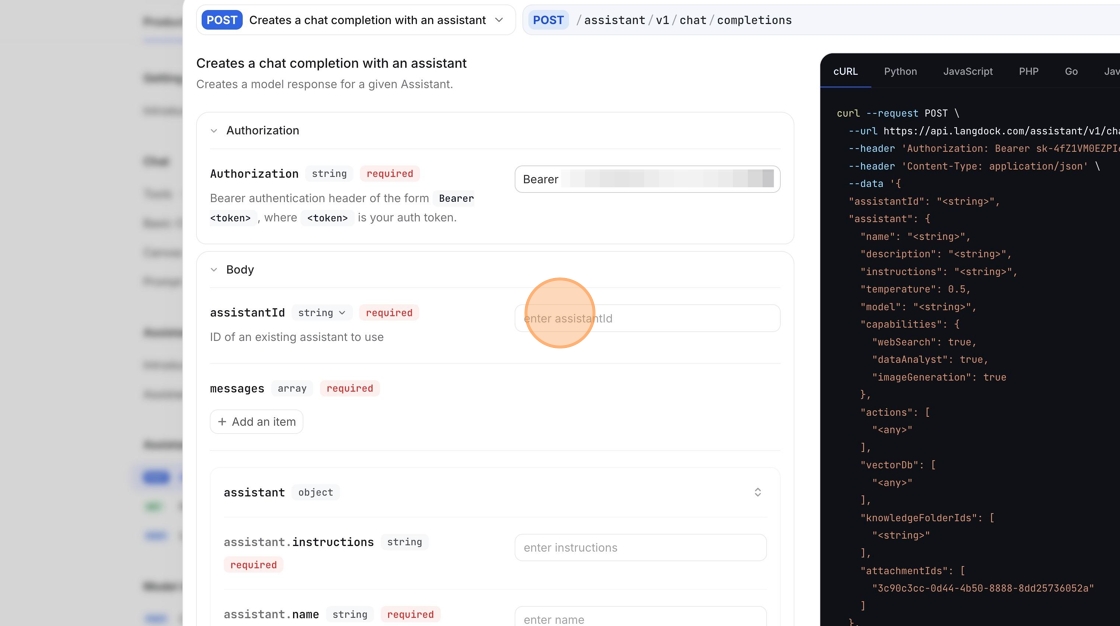
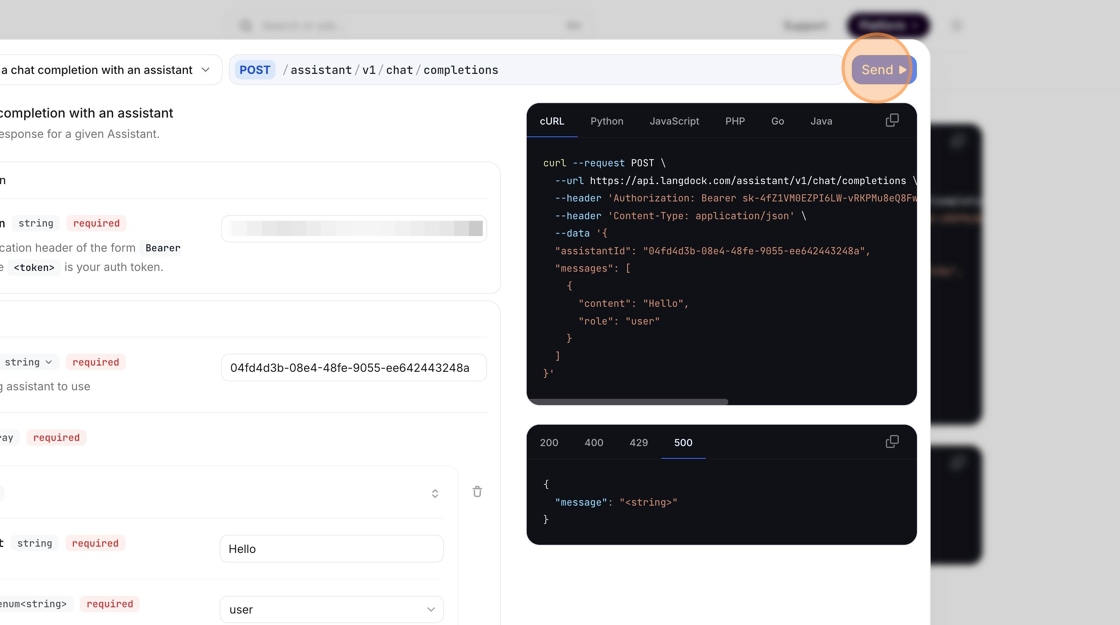
Return to the Assistant API documentation “Try it” panel and enter the Assistant ID.
Add a message object with content and the role set to "user" in the request body.
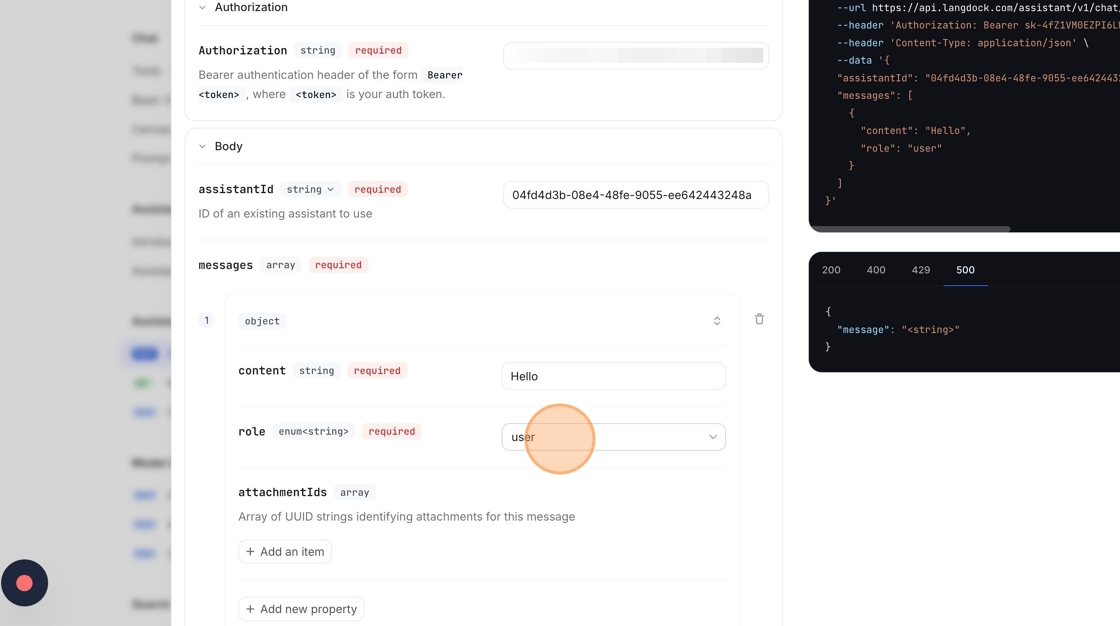
Click “Send”. You should receive a response from the Assistant API with status code 200 if successful. If your API Key is invalid, the status code will be 401.
Additional images from the original guide: