Share Knowledge Folders with the API

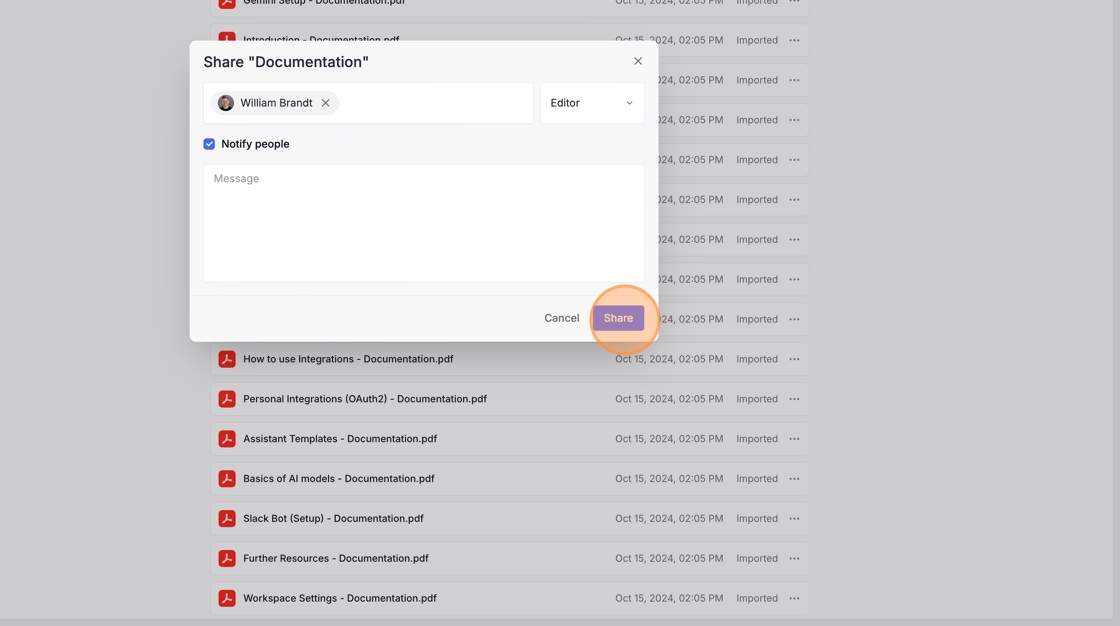
An admin needs to create the API key and share the knowledge folder with the API key. Invite an admin as an editor to your knowledge folder with the “Share” button in the top right corner (skip this step if you are a Langdock admin yourself).

How to create an API key
1

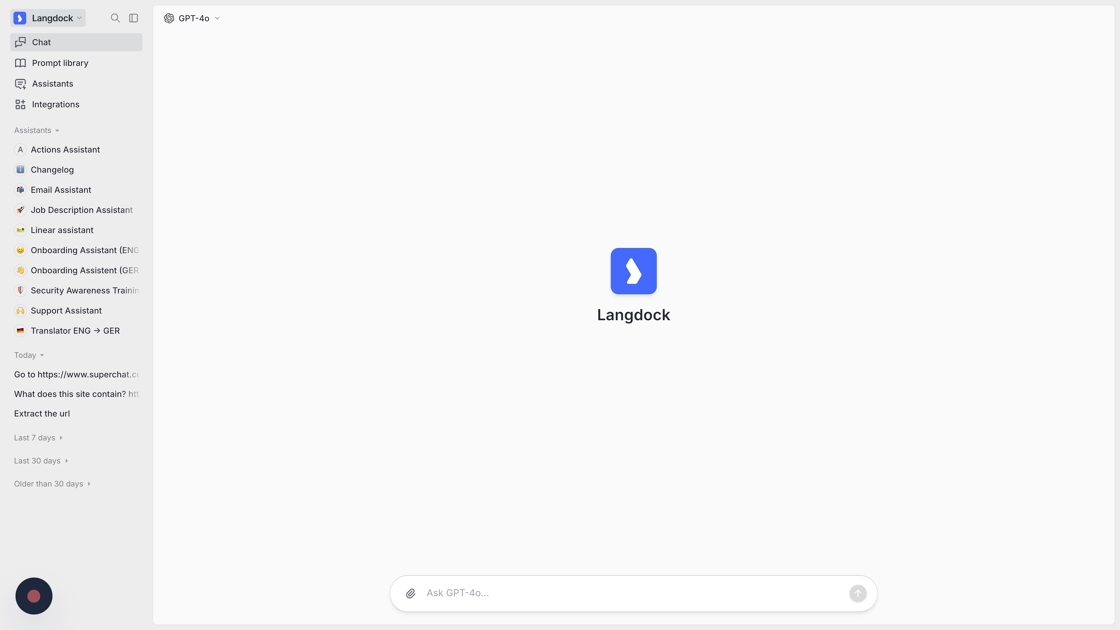
Open the Langdock app: https://app.langdock.com/chat

Navigate to Langdock
2

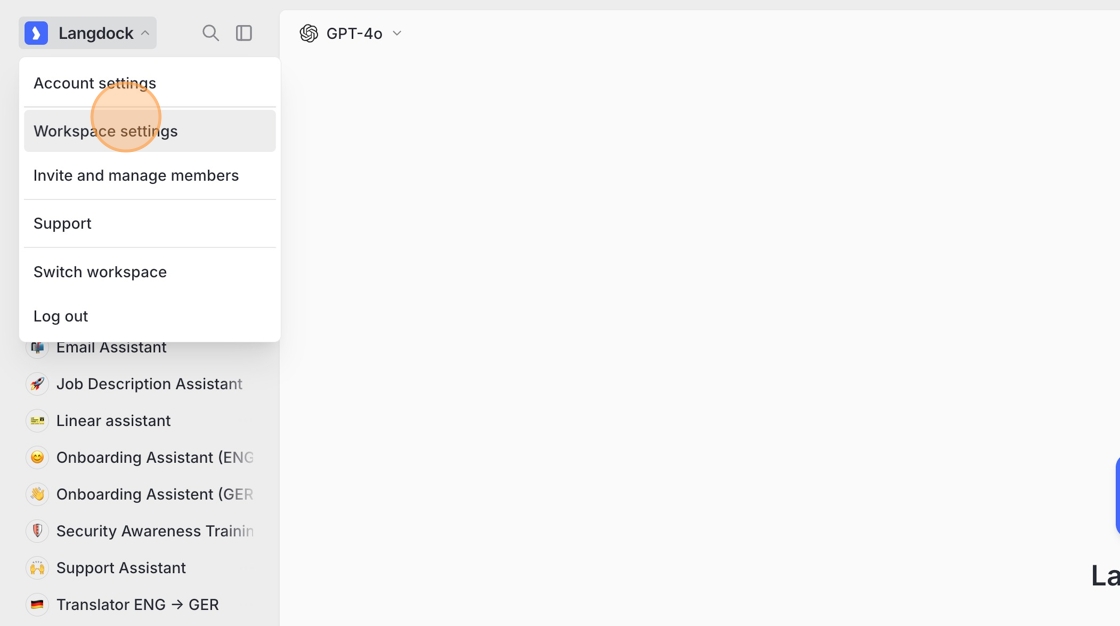
Open workspace settings

Go to your workspace settings.

Navigate to Workspace settings
3

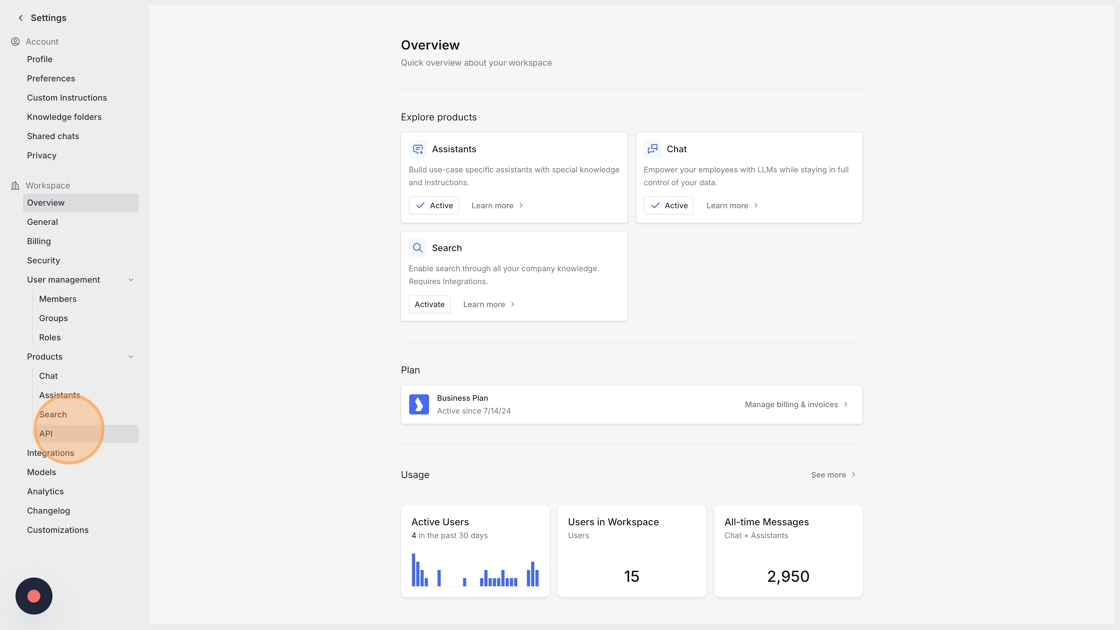
Select API under products

Click on “API”.

click on API
4

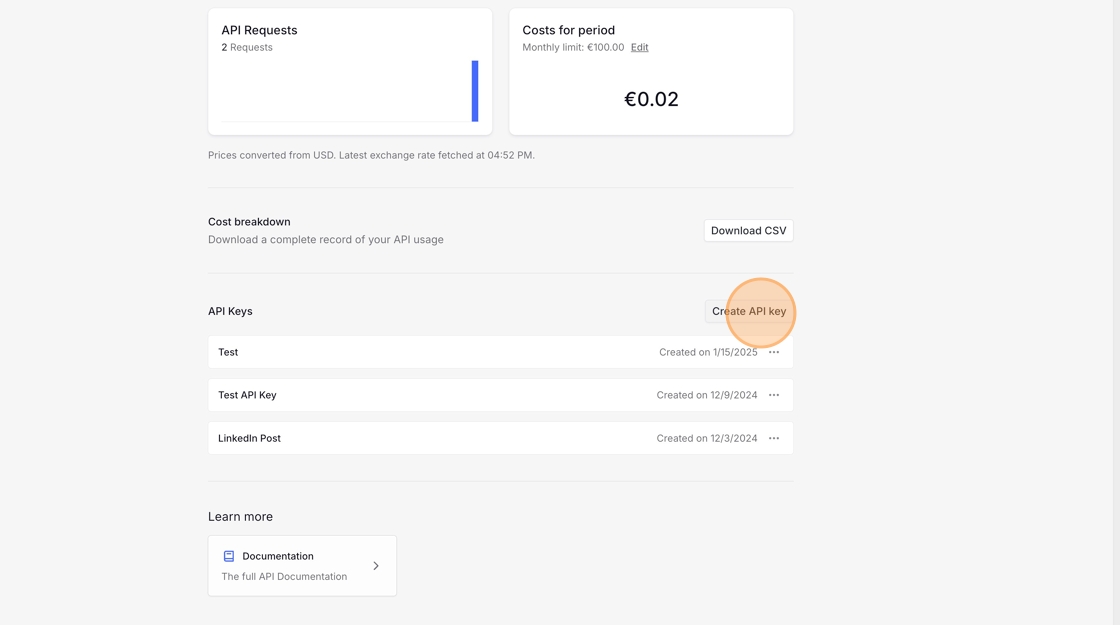
Create a new API key

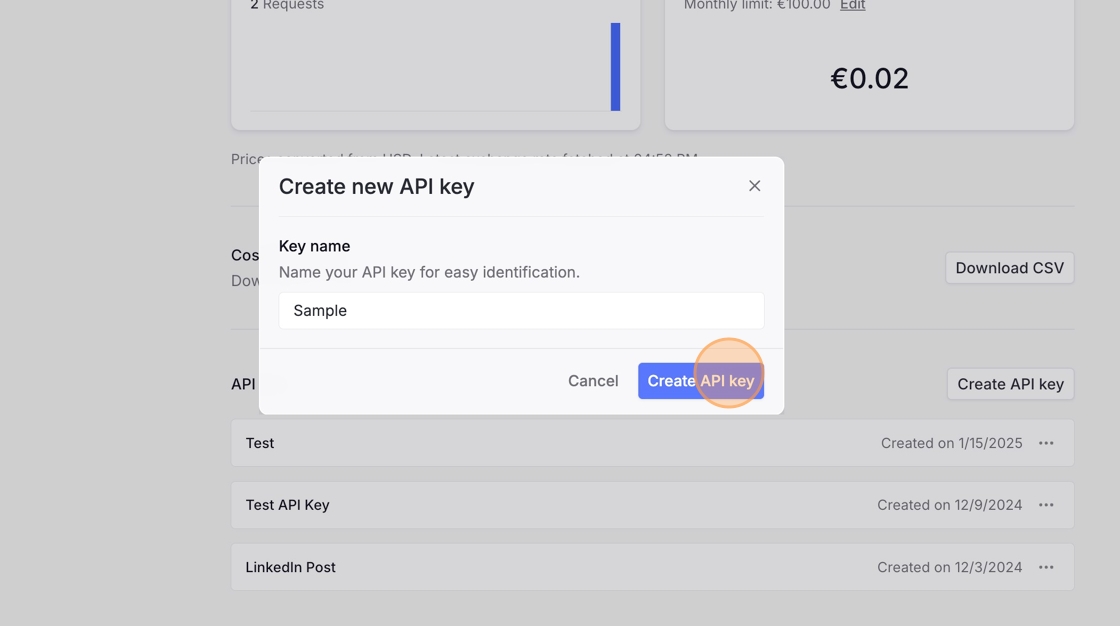
Click to create a new API key, enter a name, and click “Create API key”.

Create a new API key
Click on Create API key
5

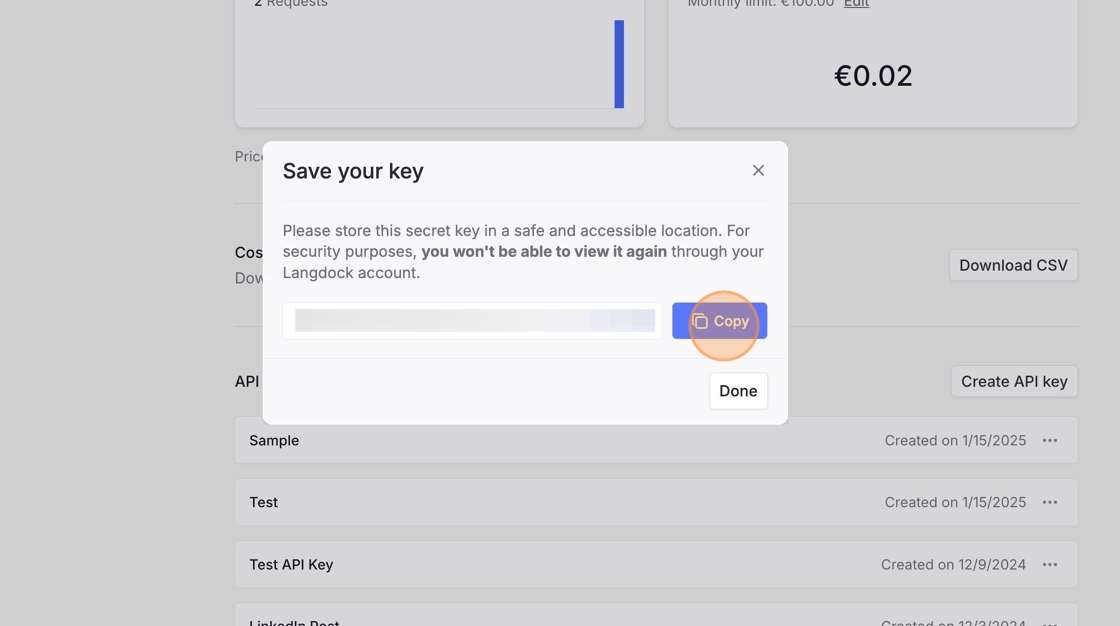
Copy the API key

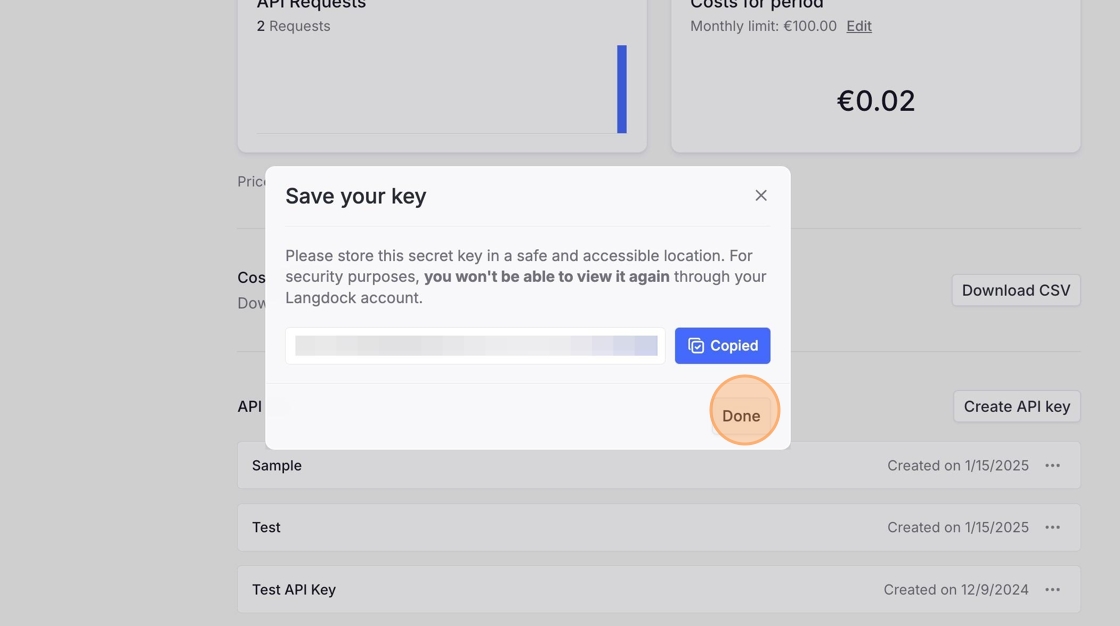
Copy the API key to the clipboard, then click “Done”.

Copy the key to the clipboard
Click on Done
6

Exit settings

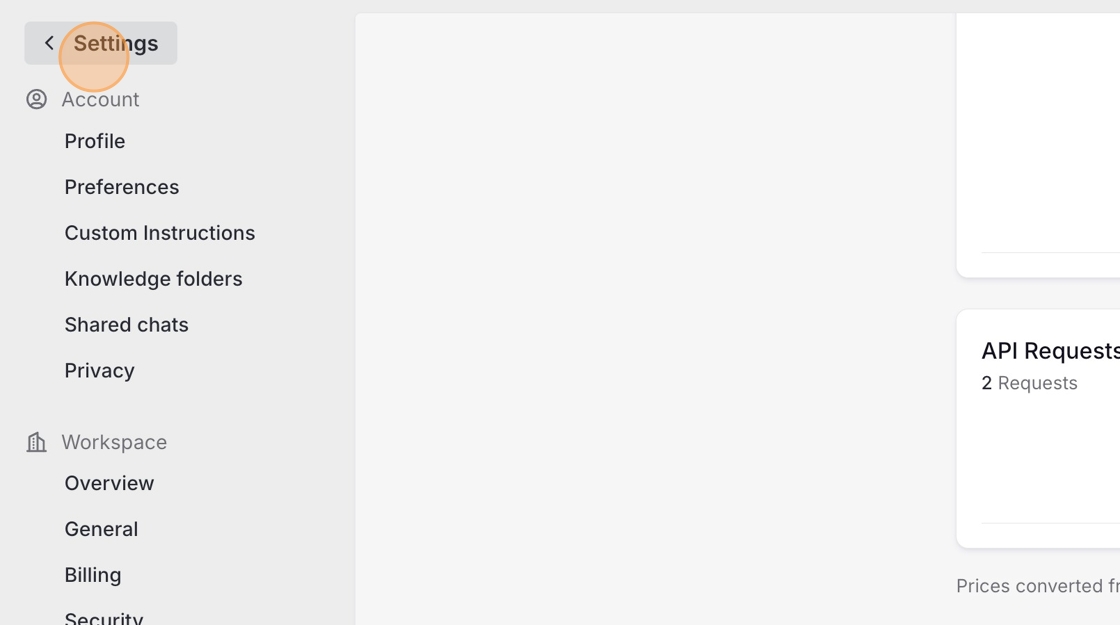
Leave the settings by clicking on “Settings” on the top left.

Leave the settings

How to share a knowledge folder with the API

Steps 5–9 below are only needed if you are not a Langdock admin. If you are a Langdock admin, jump to the step that opens your knowledge folders.
1

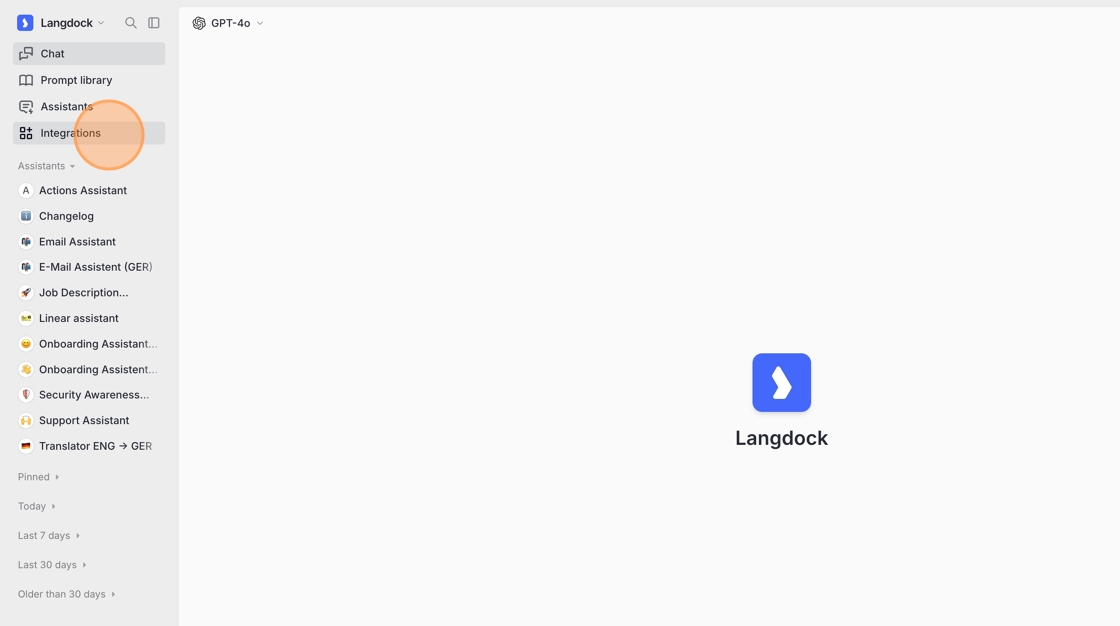
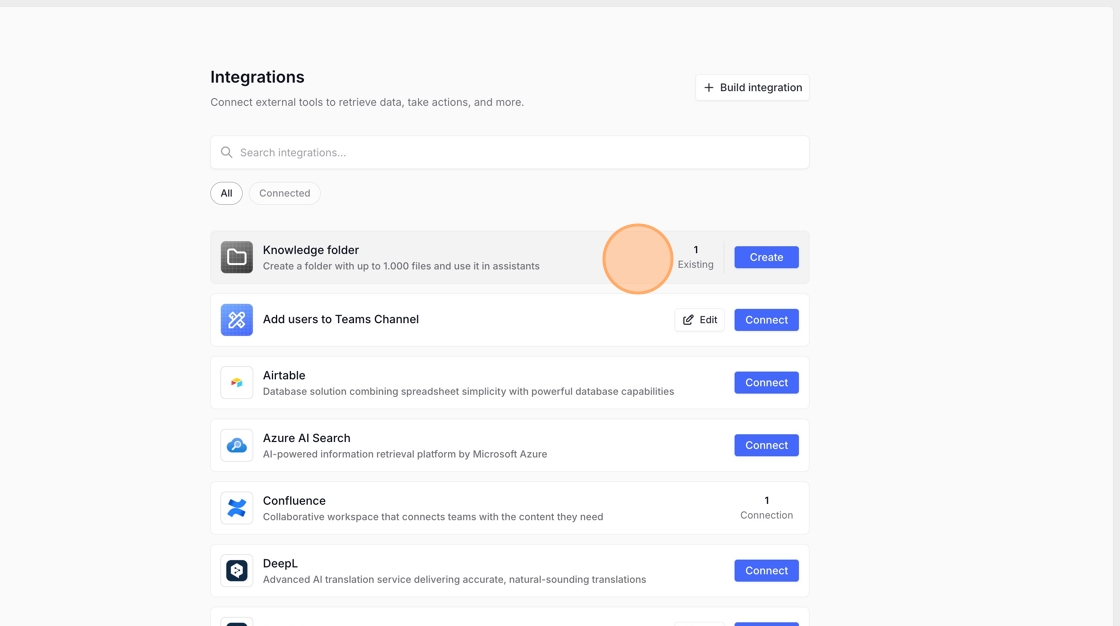
Go to Integrations

Open Integrations.

Go to "Integrations"
2

Go to your knowledge folders

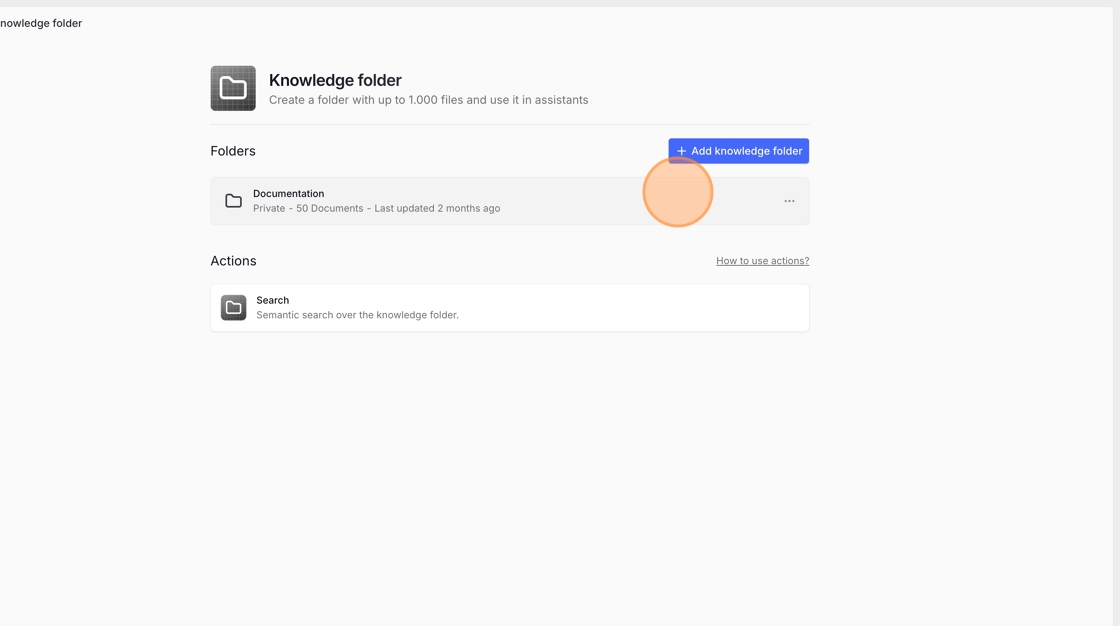
Open your knowledge folders listing.

Go to your knowledge folders
3

Open the knowledge folder you want to share

Select the folder you want to share with the API.

Open the knowledge folder you want to share with the API
4

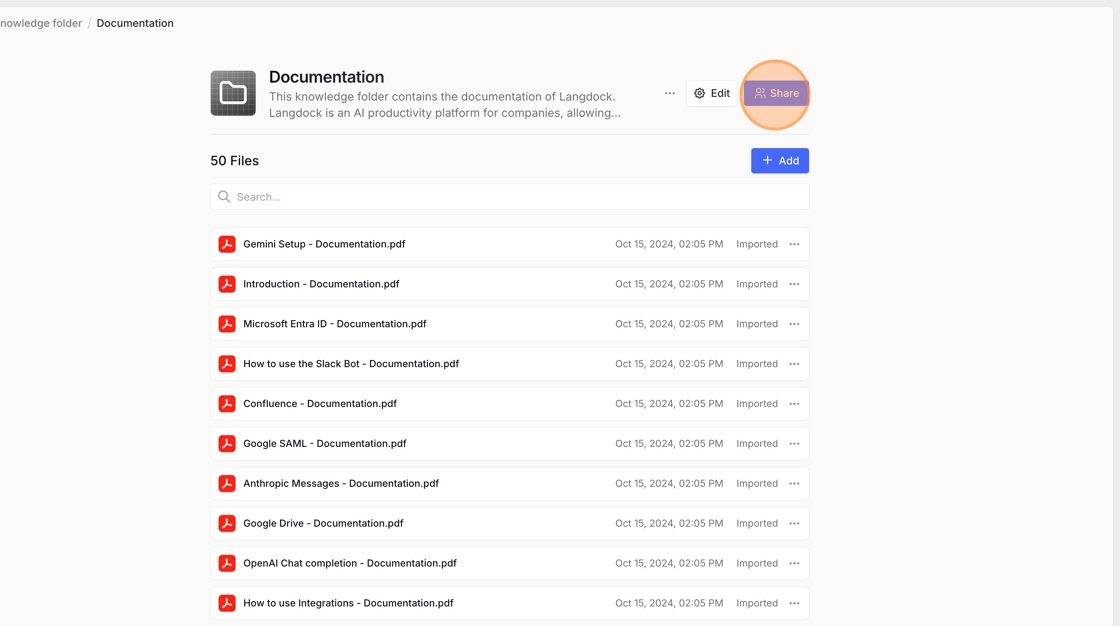
Share the folder

Click “Share”.

Click Share
5

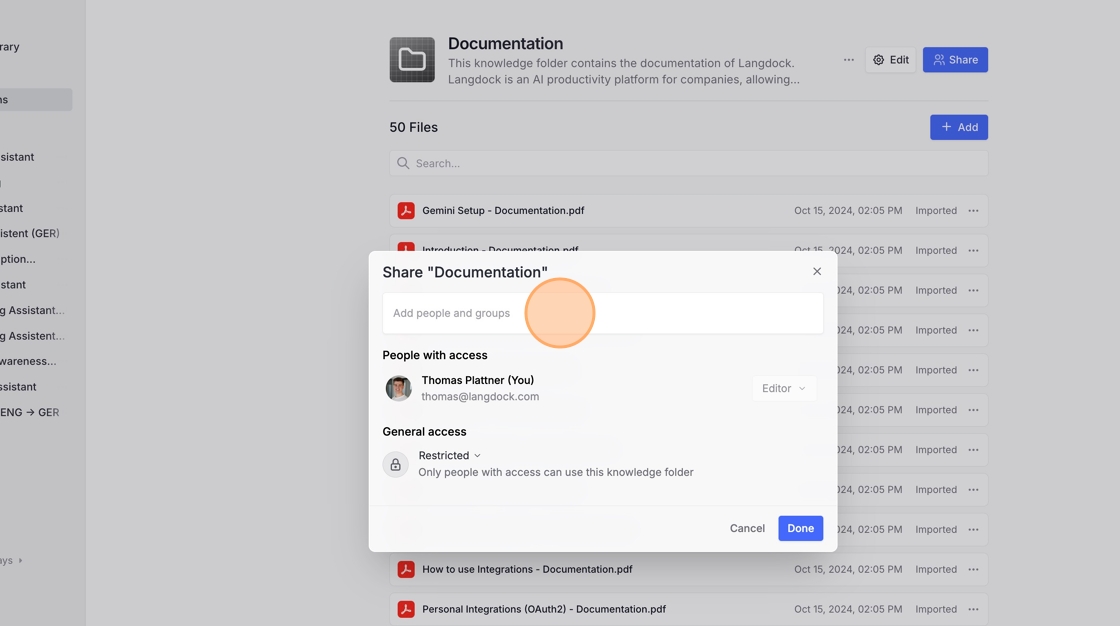
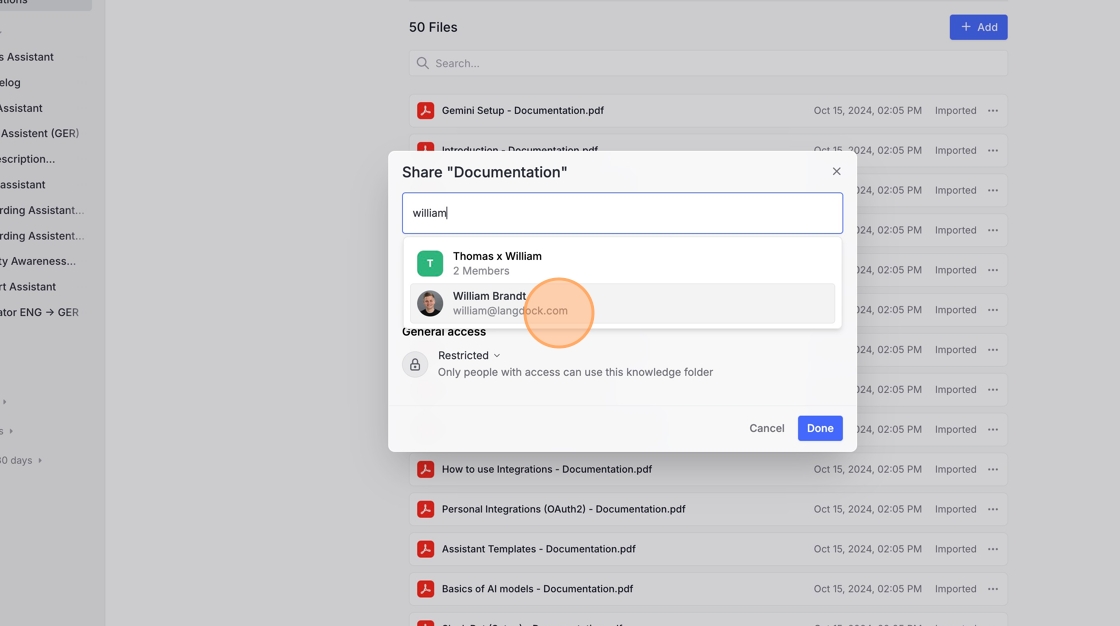
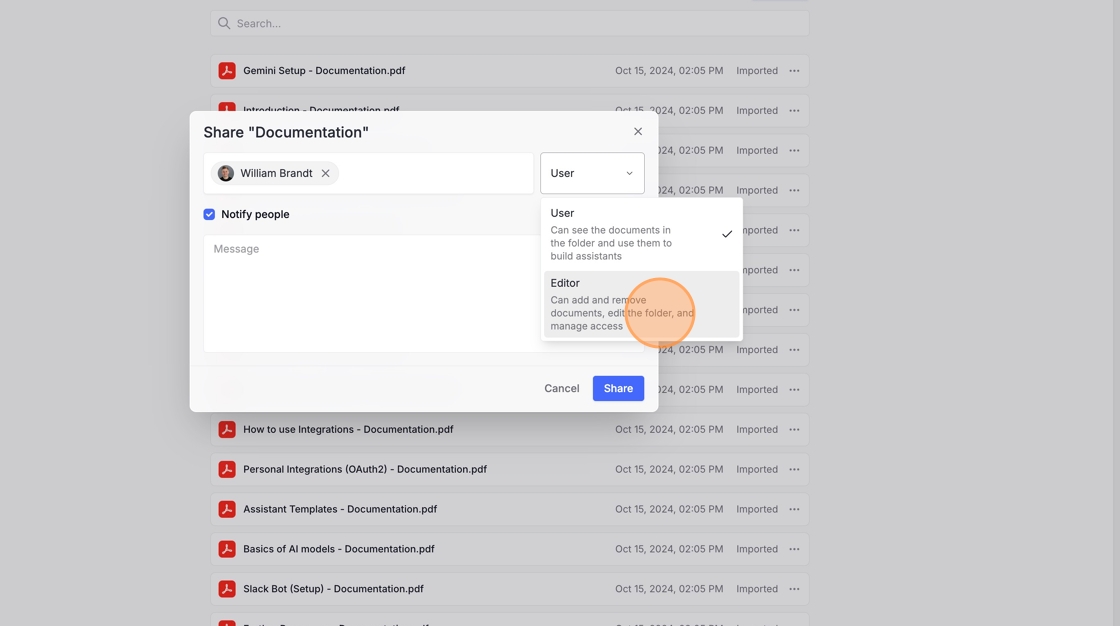
Add an admin as Editor

Click the “Add people and groups” field, type the name of an admin, select them in the dropdown, set their role to “Editor”.

Click the "Add people and groups" field
Type in the name of an admin and select them in the dropdown
Click on "User" and then select "Editor"
6

Confirm sharing

Click “Share” to apply the permission change.

Click "Share
7

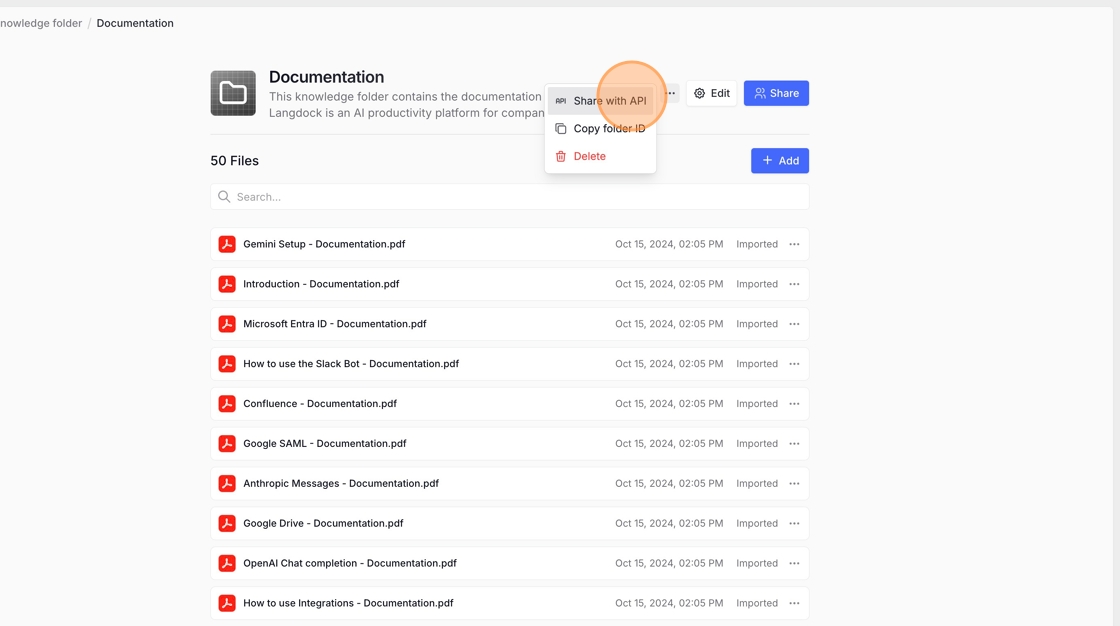
Share the folder with the API

Click the three dots at the top of the folder view, then choose “Share with API”.

Click on the three dots at the top and then on "Share with API"