Prompt Library

Adding a prompt to the prompt library

1
Save a prompt directly from a chat

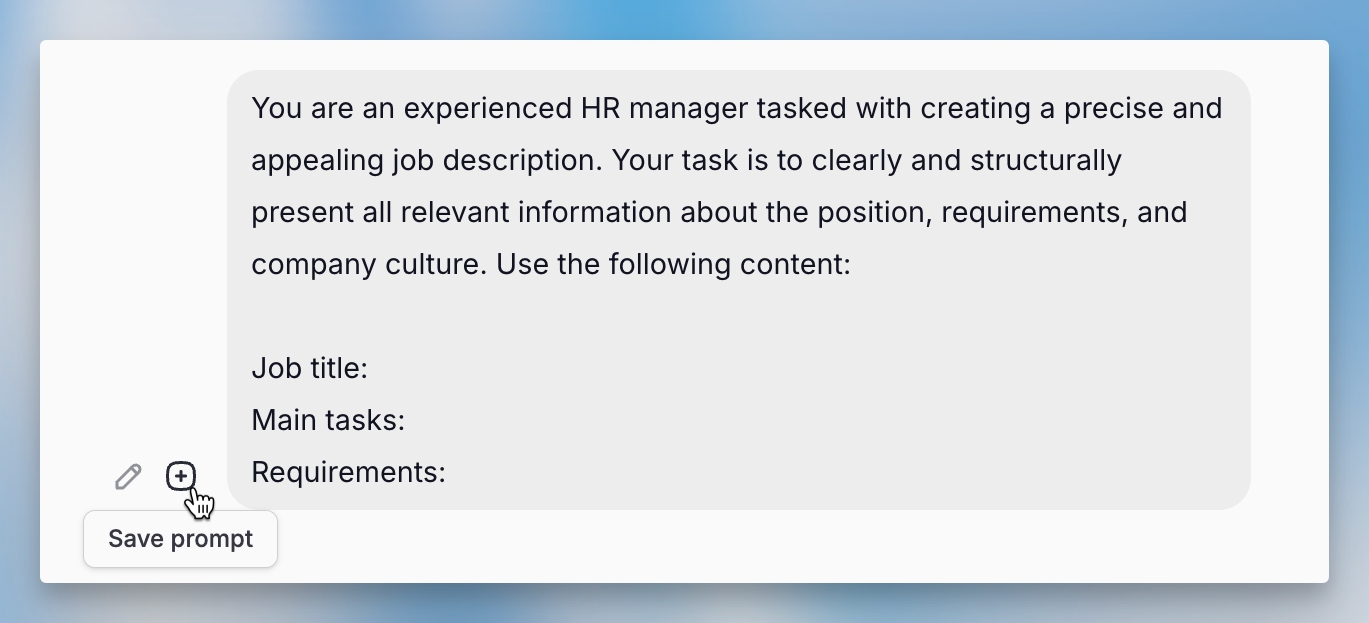
To reuse a prompt you’ve written, hover over it in any chat and click the + icon to save it. You’ll need to choose a folder and give it a name.

Save the prompt to the prompt library by pressing the little plus icon
2

Add a prompt manually in the library

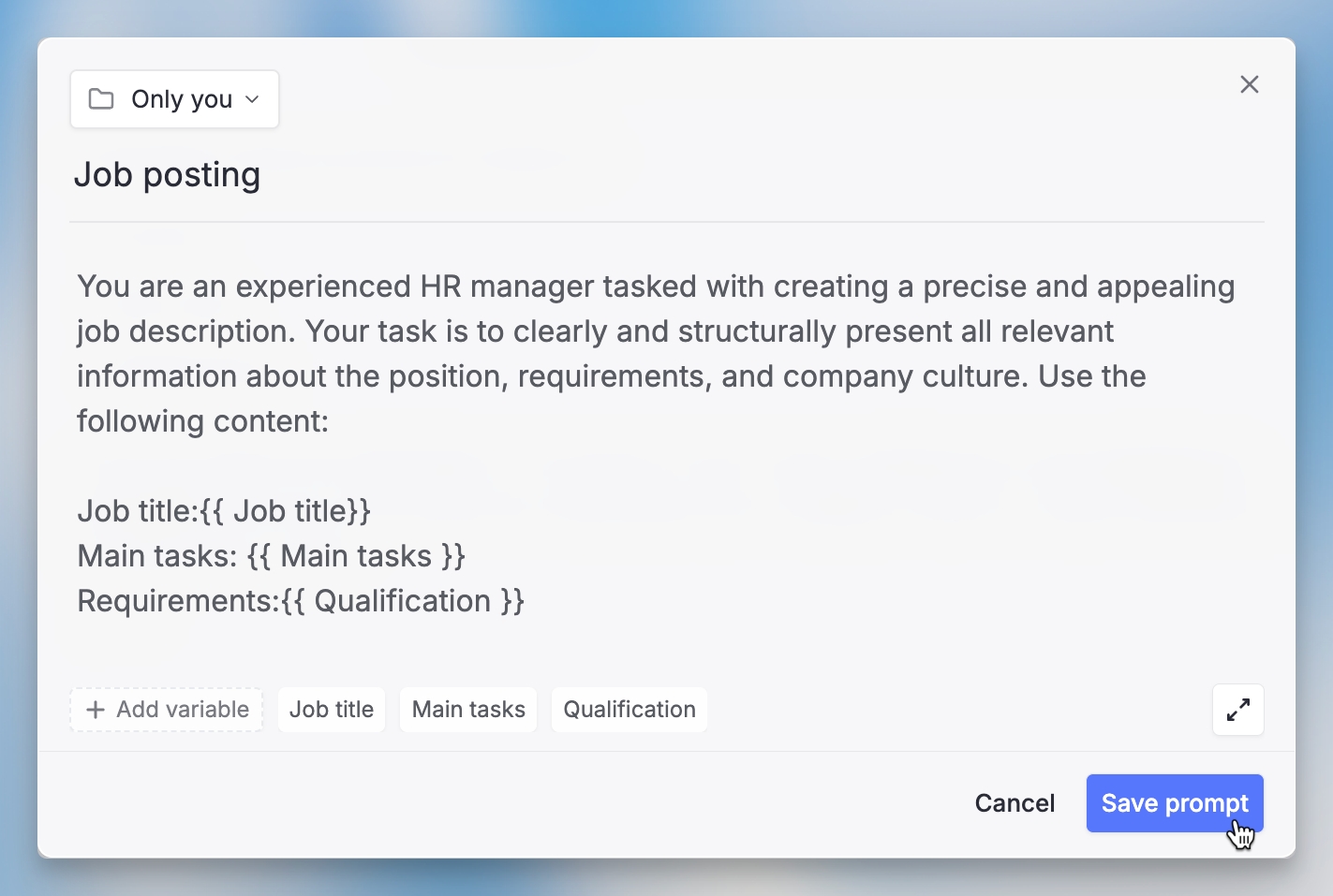
Go directly to the library and click “Add Prompts” in the upper right corner. Here you can enter the prompt’s name, the actual prompt text, and specify where to save it.

Manually Add prompt in the library through the "Add Prompt" button
3

Make prompts flexible with variables

You can add variables to make prompts more flexible using {{ }} with your variable name between the brackets. This creates placeholders that you (or others) can customize for specific situations. You can also click the button in the bottom left corner to add variables.

circle-info

You must choose a folder and a name when saving a prompt so it’s easy to find later.


Using a prompt in a chat

1

Open a new chat with a prompt

Click on any prompt in the library to open a new chat with it already loaded in the input field. You can then modify it or fill in any placeholders.

2

Insert a prompt via the @ menu

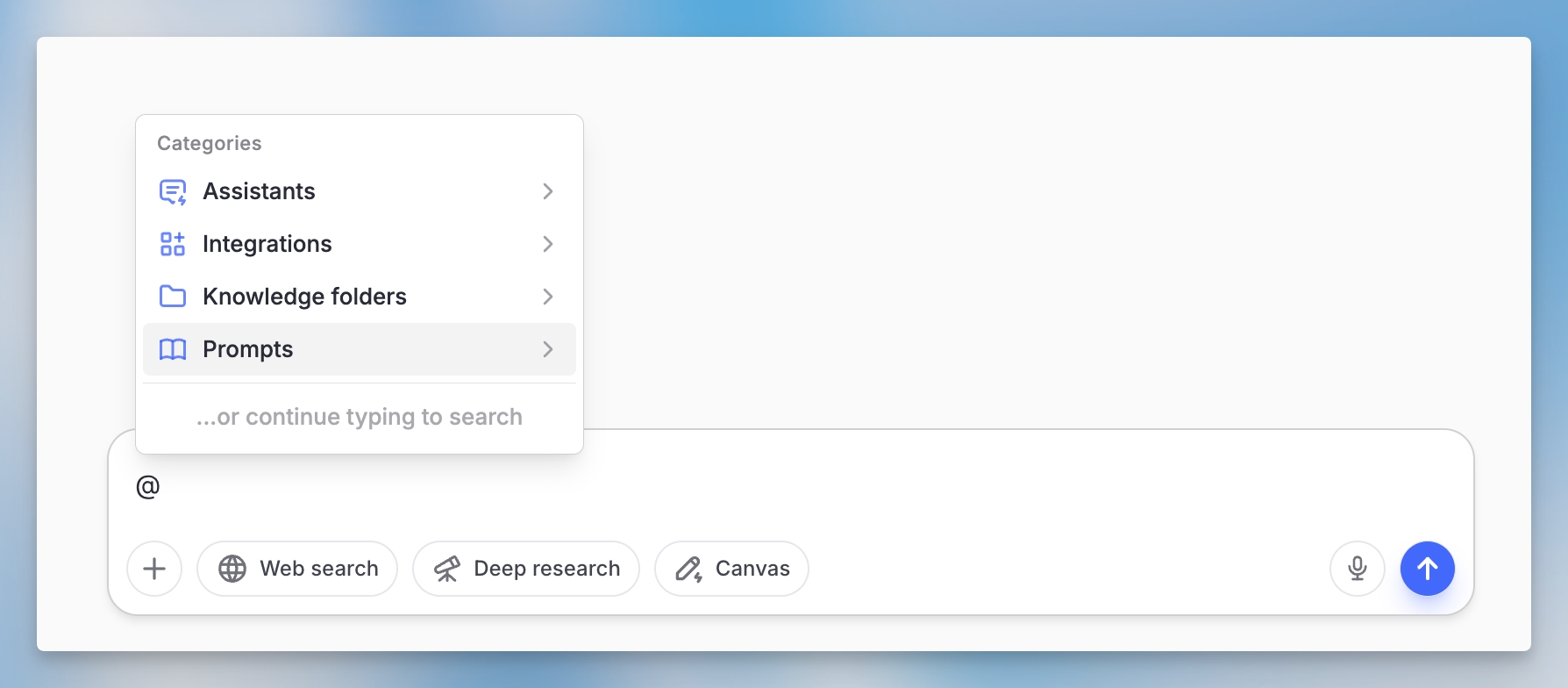
Type @ in any chat to open a list of all your available prompts. Click the one you want to use, or start typing to filter the list.

Select a saved prompt via the "@" in the chat
3

Fill in variables

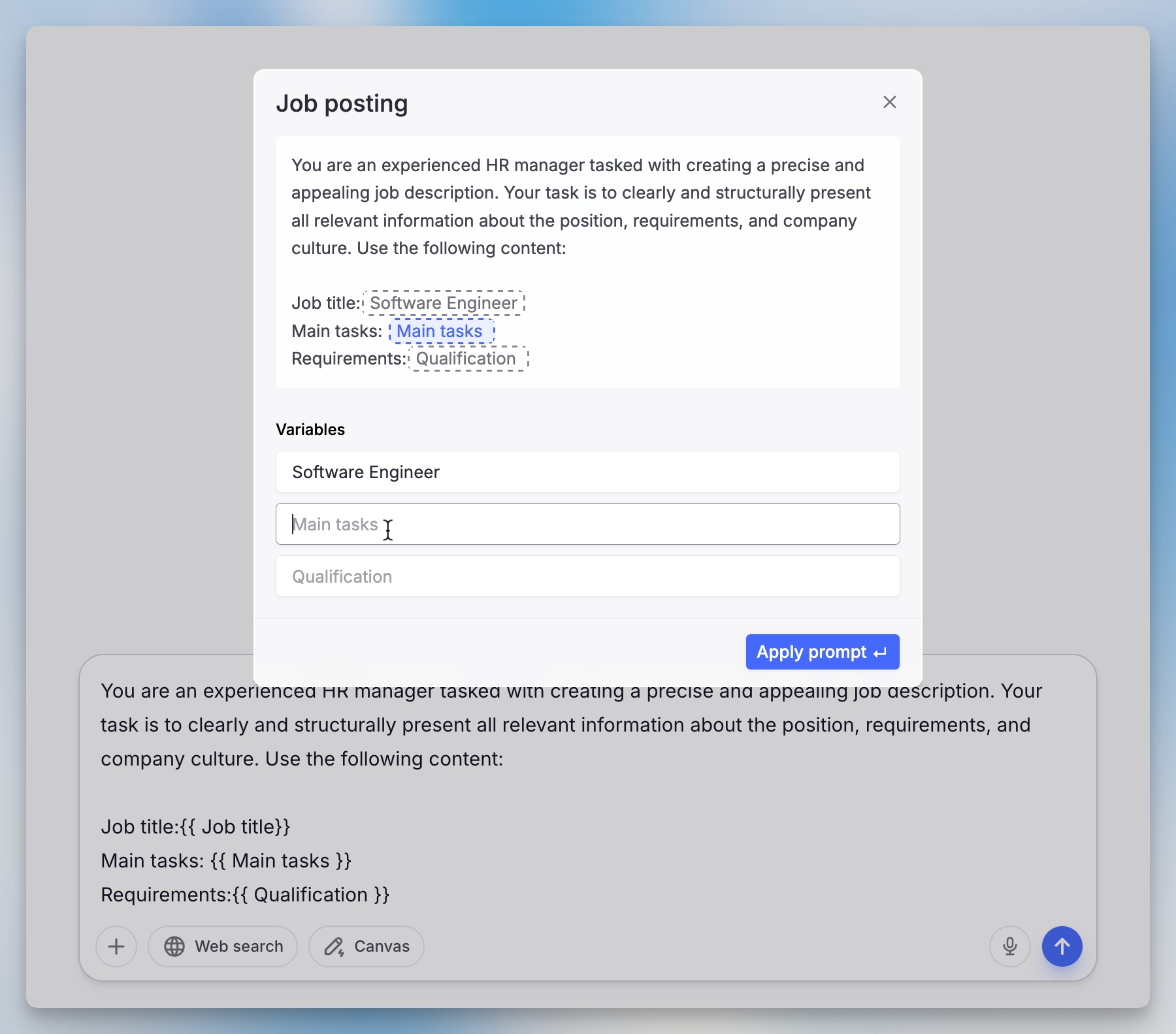
When using a prompt with variables, you’ll be prompted to fill in the specific values for your situation.

Filling out variables in chat
circle-info

Advanced tip: You can combine agents with prompts from the library. If you have an agent that follows a series of steps, save those steps as prompts in the library and execute them one by one in the agent chat.


Related:

Last updated