

Field Modes
Overview
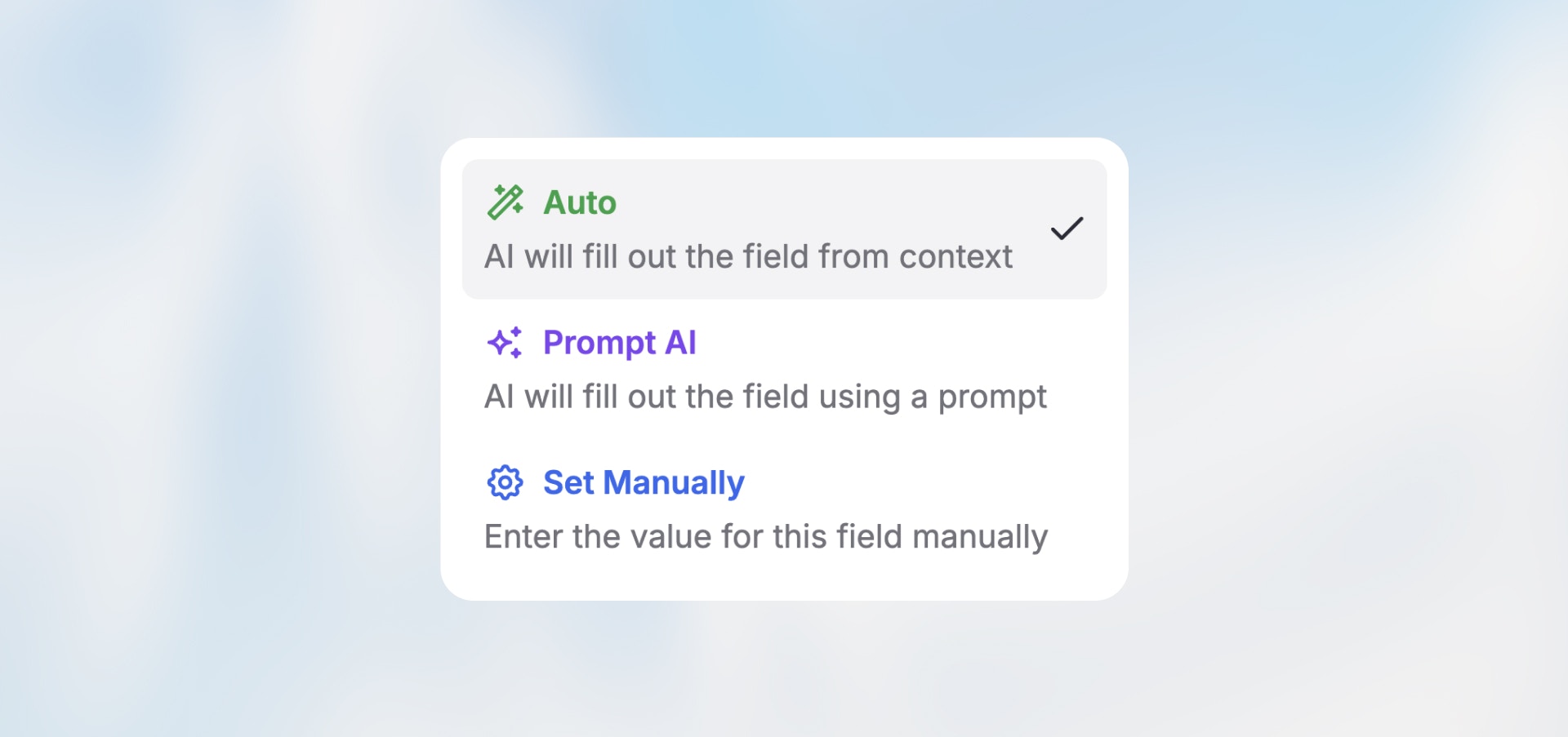
Every node in your workflow has fields that need to be configured—recipient emails, message content, API parameters, or data to process. Langdock gives you three intelligent ways to fill these fields, each optimized for different scenarios.
Choose the right mode for each field to balance flexibility, control, and AI credit usage.
The Three Field Modes
These modes apply to most node fields. Some nodes like Condition have their own modes (Manual and Prompt AI) optimized for their specific purpose.
Auto Mode
Let the workflow automatically determine the best value based on context from previous nodes.
How it works:
Analyzes all data from previous nodes in the workflow
Intelligently matches field requirements with available data
Automatically fills the field with the most appropriate value
Best for:
Straightforward data mapping (form data → spreadsheet)
Fields where the context is obvious
When you want flexibility and don’t need exact control
Reducing configuration time
Example:
Advantages:
✅ Fast setup—minimal configuration needed
✅ Very flexible—adapts to varying data structures
✅ Great for covering edge cases automatically
✅ Handles unexpected data gracefully
Disadvantages:
❌ Consumes AI credits (uses AI to determine values)
❌ Less control over exact output
❌ Can get expensive with frequent executions
Manual Mode
Enter exact values or reference specific data from previous nodes with complete control.

How it works:
What you type is exactly what appears (no AI processing)
Use variables to insert data from previous nodes:
{{trigger.name}}Combine static text with dynamic variables
Best for:
Fixed values (API keys, webhook URLs, signatures)
Exact data references you want to control
Combining static text with variables
When you need predictable, consistent output
Example:
Advantages:
✅ Complete control over output
✅ No AI credits used
✅ Predictable and consistent
✅ Fastest execution (no AI processing)
✅ Perfect for templates and fixed formats
Disadvantages:
❌ Requires manual configuration
❌ Can’t generate dynamic content based on context
❌ You must know exact variable paths
AI Prompt Mode
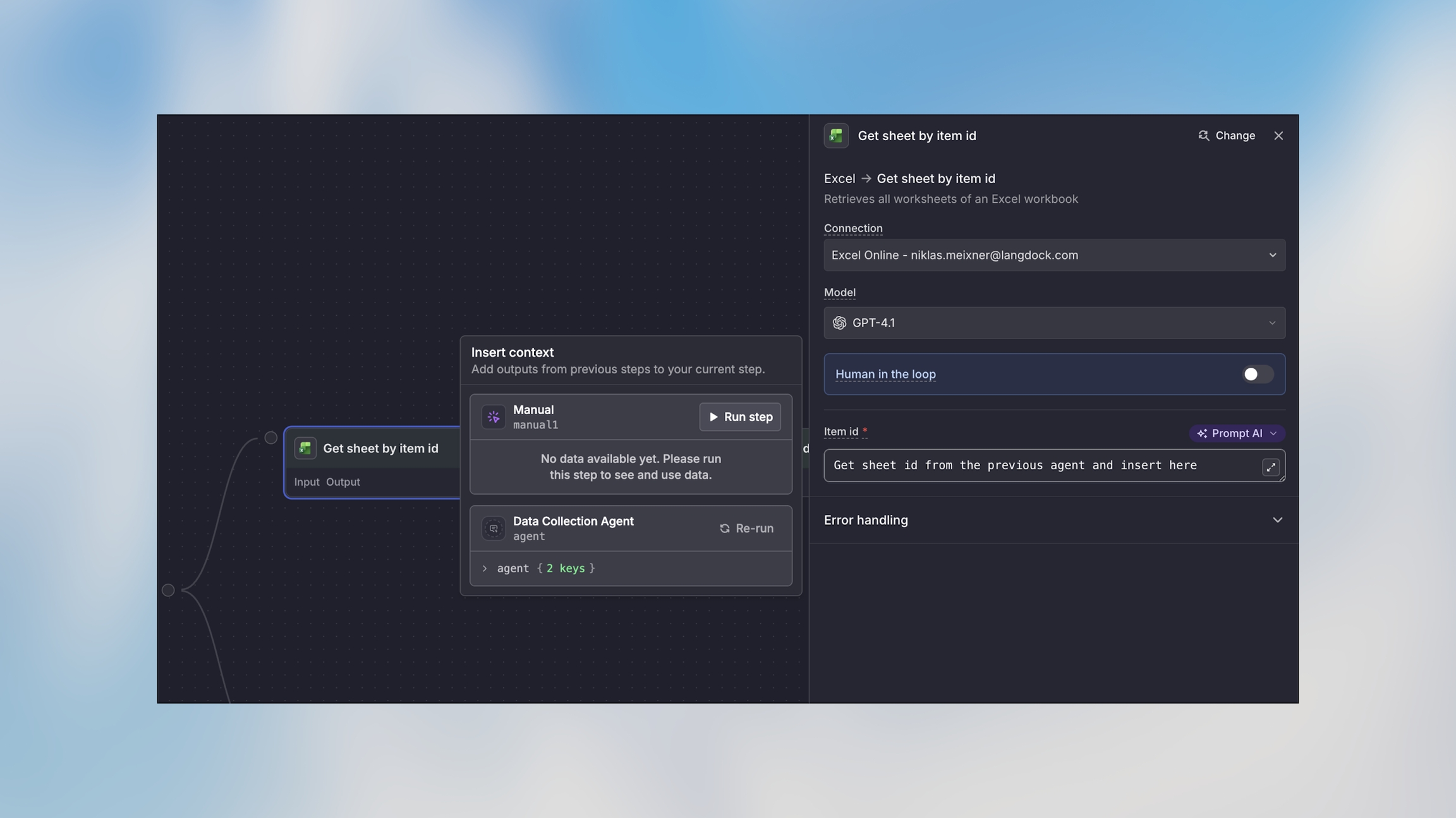
Give natural language instructions for the AI to generate dynamic content based on workflow data.
How it works:
Write instructions describing what content should be generated
AI analyzes data from previous nodes and creates appropriate content
Can reference specific data using variables:
{{trigger.output..message}}Generates unique output each time based on context
Best for:
Email composition (subject lines, body content)
Content generation (summaries, descriptions)
Dynamic messages that adapt to context
Transforming or reformatting data creatively
Example:
Advantages:
✅ Creates intelligent, context-aware content
✅ Adapts to different situations automatically
✅ Saves time writing templates
✅ Can combine multiple data sources creatively
✅ Produces natural, varied output
Disadvantages:
❌ Consumes AI credits
❌ Slightly slower than manual mode
❌ Output may vary between executions
❌ Requires clear prompting for best results
Choosing the Right Mode
Use this decision flow to select the appropriate mode:
Mode Comparison
Configuration Time
Fast
Medium
Medium
AI Credits
Yes
None
Yes
Control
Low
High
Medium
Flexibility
High
Low
High
Best For
Simple mapping
Fixed values
Content generation
Real-World Examples
Customer Support Workflow
Data Processing Workflow
Notification Workflow
Using Variables in Manual and AI Prompt Modes
Both Manual and AI Prompt modes support variables from previous nodes.
Syntax:
Examples:
Tip: Type {{ in any Manual or AI Prompt field to see available variables from previous nodes.
Best Practices
Start with Auto, refine as needed: Begin with Auto mode for most fields. If it doesn’t work as expected, switch to Manual or AI Prompt for more control.
Use Manual for fixed values: API keys, email addresses, signatures, and webhook URLs should always use Manual mode.
Be specific in AI prompts: Instead of “write an email”, use “write a professional 2-paragraph email thanking for their interest in <...>”.
Minimize AI mode usage: Both Auto and AI Prompt modes consume AI credits. Use Manual mode for fixed values and simple variable references to reduce costs.
Test with real data: Run test workflows with actual data to verify each mode behaves as expected before publishing.