

Condition
Overview
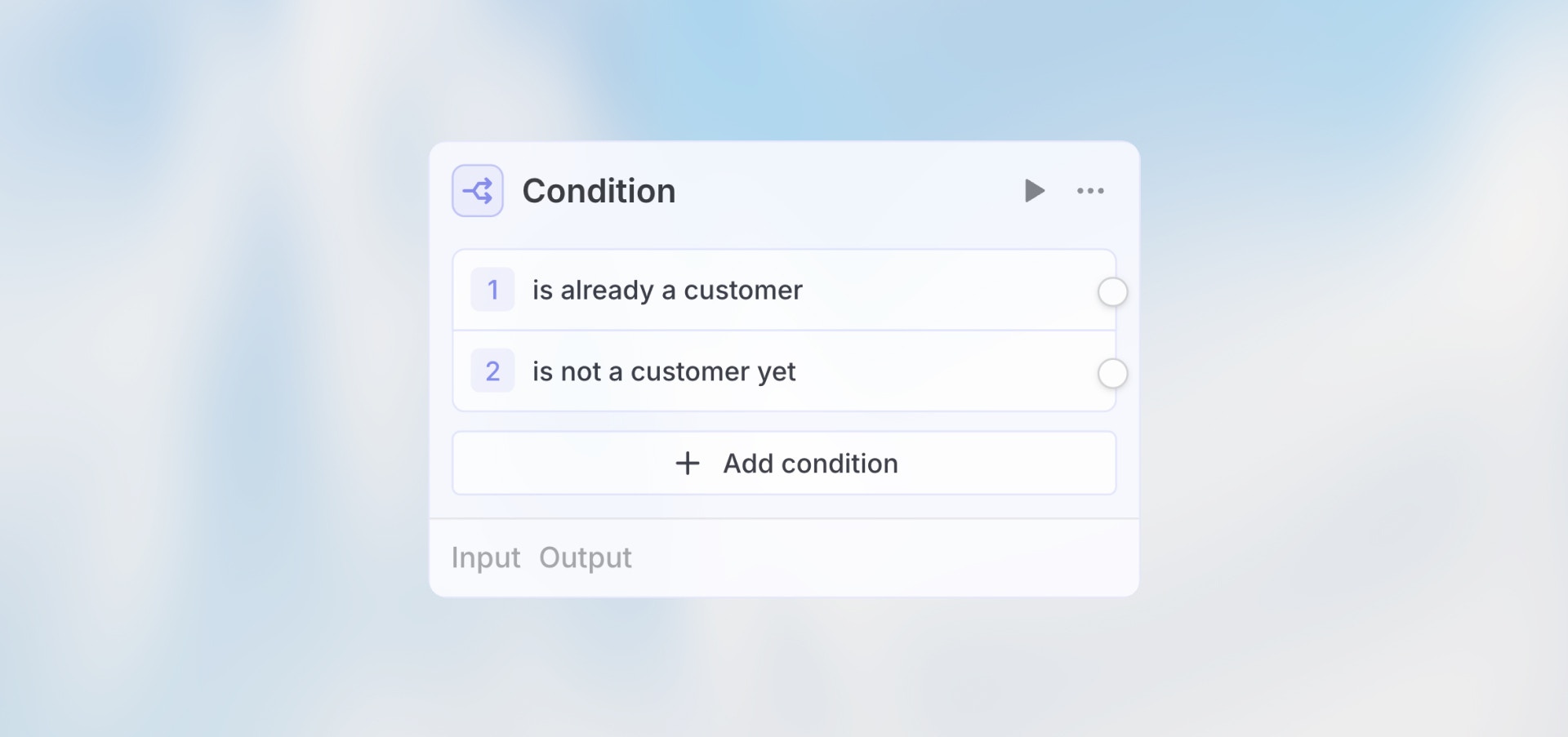
The Condition node adds branching logic to your workflow. Based on data from previous nodes, route execution down different paths — like if-then-else statements in code, but visual and no-code.
Best for: Approval workflows, priority routing, data validation, multi-path automations, and decision logic.
How It Works
Configuration
Model Selection
Choose the AI model used for Prompt AI mode conditions. This applies only when using Prompt AI mode—Manual mode doesn’t use AI.
Condition Modes
Each individual condition can use one of two modes:
Manual Mode Write expressions inside
{{ }}brackets. Examples:
Important: All manual expressions must be wrapped in {{ }} brackets.
Prompt AI Mode Give natural language instructions for the AI to evaluate. Example:
Allow Multiple Conditions
Disabled (default): First match wins
Conditions evaluated in order (top to bottom)
Only the first matching condition executes
Other conditions are skipped
Enabled: All matching conditions execute
All conditions are evaluated
Every condition that returns true executes
Useful for triggering multiple parallel actions
Example Use Cases
Priority Routing (Manual Mode)
Customer Segmentation (Prompt AI Mode)
Amount Threshold (Manual Mode)
Choosing Between Modes
Use Manual Mode When
Logic is straightforward (checking values, comparing numbers)
You need predictable, consistent results
You want to minimize AI credit usage
Conditions are based on exact data matching
Example:
Use Prompt AI Mode When
Logic requires understanding context or nuance
Evaluating natural language content
Making subjective judgments
Combining multiple factors that need interpretation
Manual Mode Operators
When writing manual expressions, you can use:
Comparison:
===,!==,>,<,>=,<=Logical:
&&(and),||(or),!(not)String Methods:
.includes(),.startsWith(),.endsWith()Existence: Check if value exists with
{{ trigger.field }}
Examples:
Best Practices
Add a Default Condition — Always add a final condition with
{{ true }}to catch cases that don’t match other conditions.Order Matters (When Allow Multiple Disabled) — Conditions are evaluated top to bottom. Put most specific conditions first, general ones last.
Use Clear Names — Name conditions clearly (e.g., “If High Priority”) to make workflows easier to understand.
Choose the Right Mode — Use Manual for simple logic checks. Use Prompt AI for complex evaluations needing context analysis.