

File Search

Overview
The File Search node queries your knowledge folders to retrieve relevant information and context. Connect your workflow to your organization’s knowledge base - search through documents, files, and data stored in knowledge folders to enrich AI responses, validate information, or provide context for decisions.
Best for: Knowledge retrieval, document search, context enrichment, RAG (Retrieval Augmented Generation), and accessing organizational knowledge.
When to Use File Search
Perfect for:
Searching company documentation and knowledge bases
Retrieving relevant context for AI agent responses
Finding specific information across multiple documents
Implementing RAG (Retrieval Augmented Generation) patterns
Validating information against internal knowledge
Enriching workflows with organizational data
Not ideal for:
Real-time web search (use Web Search node)
Fetching data from external APIs (use HTTP Request node)
Processing individual files (use direct file attachments)
Configuration
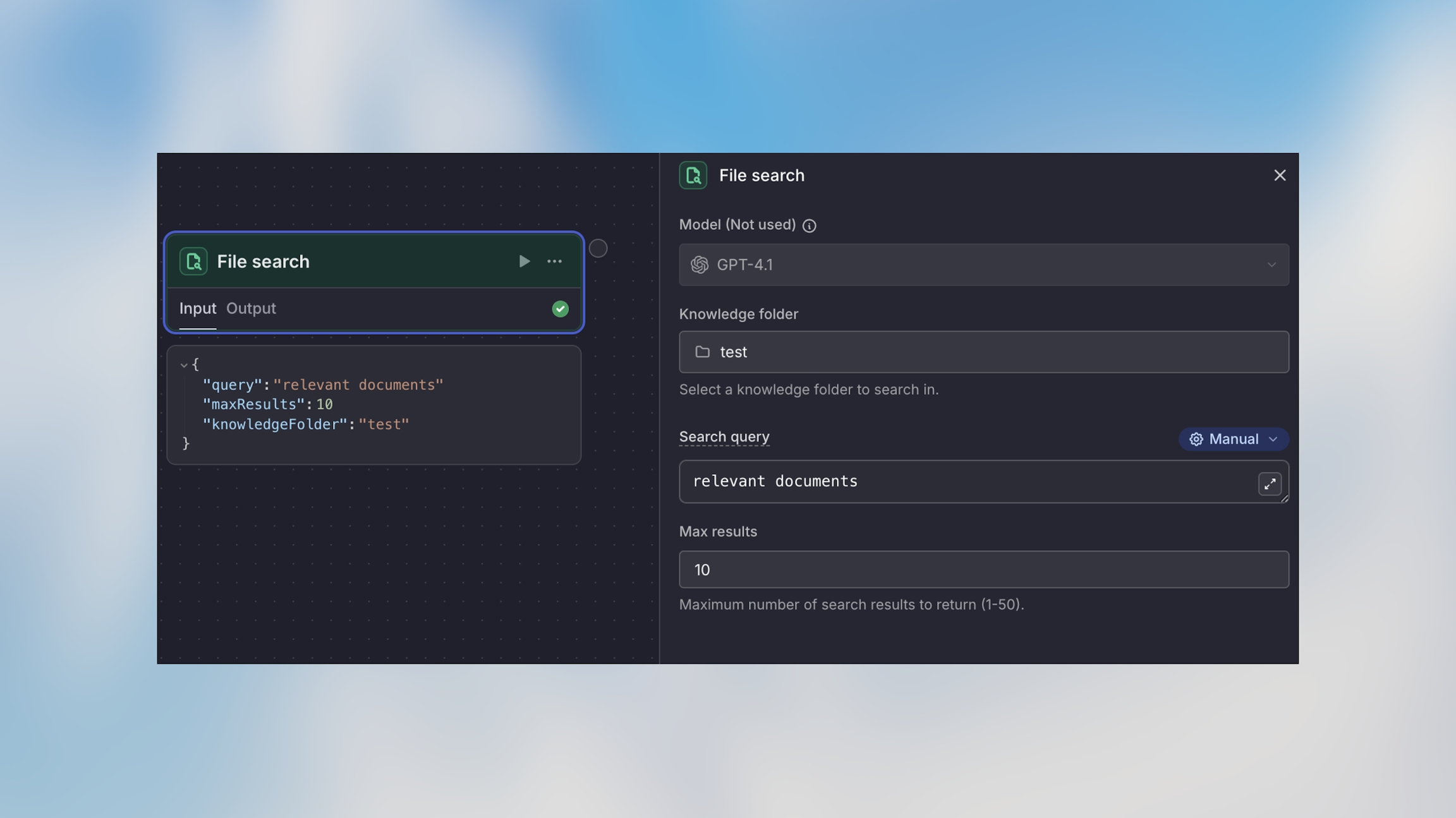
Knowledge Folder
Select the knowledge folder to search from your workspace’s available folders.
Options:
Choose from connected knowledge folders
Each folder contains your uploaded documents and files
Folders can include PDFs, Word docs, spreadsheets, and more
Search Query
The search query to find relevant information. Supports Manual, Auto, and Prompt AI modes.
Manual mode examples:
Prompt mode example:
Max Results
The maximum number of relevant results to return (default: 5)
Recommendations:
1-3 results: Focused, specific queries
5-10 results: Broader context needed
10+ results: Comprehensive searches (may impact performance)
How It Works
Example Use Cases
Customer Support with Knowledge Base
Product Information Lookup
Document Validation
Accessing Search Results
Access the retrieved information in subsequent nodes:
Result Structure
Each result contains:
content: The relevant text chunk from the document
score: Relevance score (0-1, higher is more relevant)
source: Source file name and location
metadata: Additional file metadata
Using in Agent prompts:
Limitations
Knowledge Folder Scope: Only searches within the selected knowledge folder
Result Quality: Depends on quality and completeness of uploaded documents
Chunk Size: Large documents are split into chunks; relevant information might span multiple results
Real-time Updates: Document changes require reprocessing before they appear in search results
Important: Ensure your knowledge folders are regularly updated with current information for accurate search results.
Best Practices
Write Specific Search Queries More specific queries return more relevant results. Include key terms, product names, or topics rather than generic searches.
Adjust Max Results Based on Use Case Start with 5 results and adjust based on response quality. Too few might miss important context, too many can dilute relevance.
Keep Knowledge Folders Organized Organize knowledge folders by topic or domain for more targeted searches. Separate technical docs from marketing content.
Combine with Agent Nodes File Search is most powerful when combined with Agent nodes. The agent can synthesize and interpret the retrieved information.
Test with Real Queries Test your file search with actual questions users might ask to ensure knowledge folder content is sufficient and queries return relevant results.
Handle No Results Add a condition after file search to handle cases where no relevant results are found. Provide fallback responses or escalation paths.