Integration Trigger
Overview
The Integration Trigger connects your workflows to real-time events from your connected applications. When something happens in Slack, Google Sheets, your CRM, or any other integrated service, your workflow springs into action automatically.
Best for: Responding to events in connected apps, real-time automation, cross-platform workflows, and event-driven processes.
When to Use Integration Trigger
Perfect for:
New Slack messages in specific channels
New or updated rows in Google Sheets
Emails received in specific folders
Calendar events created or updated
New files added to folders (Drive, Dropbox, OneDrive)
CRM record changes (new leads, updated deals)
Project management updates (new tasks, status changes)
Not ideal for:
Custom API integrations (use Webhook Trigger)
Scheduled recurring tasks (use Scheduled Trigger)
User-submitted forms (use Form Trigger)
Configuration
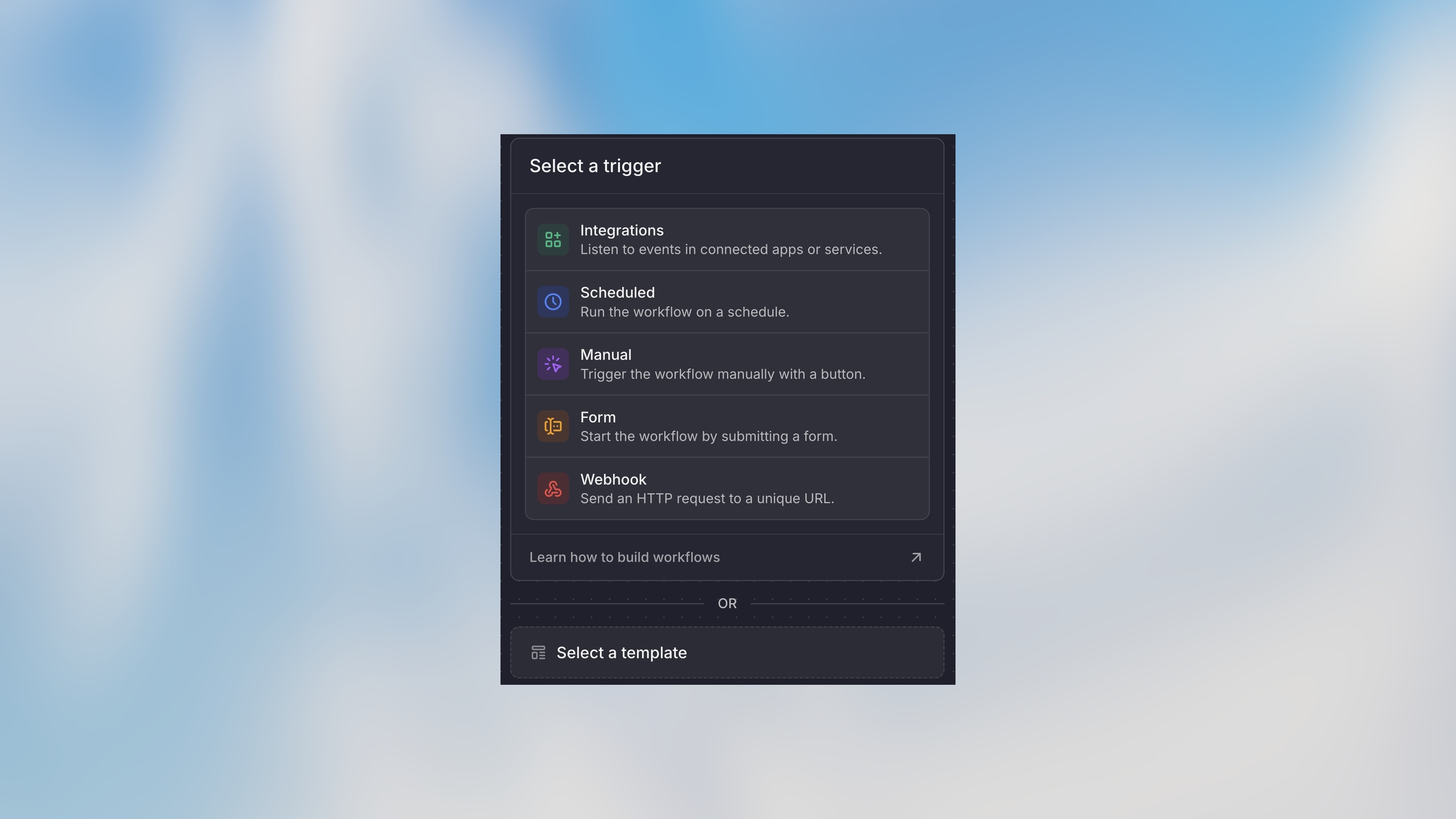
Select Integration
Choose from your workspace’s connected integrations:
Communication: Slack, Microsoft Teams, Gmail
Productivity: Google Sheets, Notion, Asana, Jira
Storage: Google Drive, OneDrive, Dropbox
CRM: Salesforce, HubSpot
Calendar: Google Calendar, Outlook Calendar
And many more…
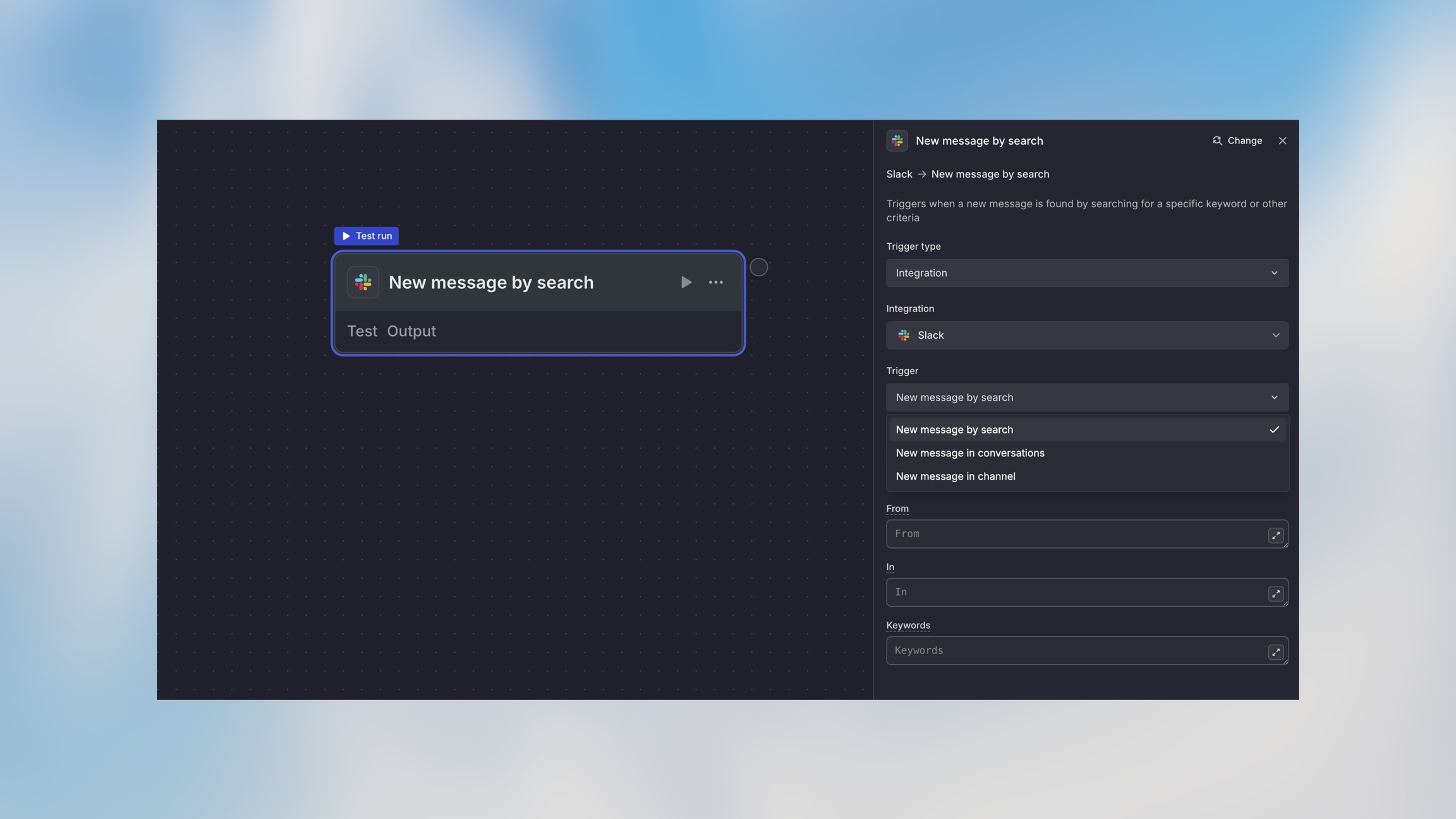
Choose Event Type
Each integration offers specific trigger events.
Slack:
New message in channel
New direct message
Message with specific emoji reaction
User joined channel
Google Sheets:
New row added
Row updated
Row deleted
Spreadsheet opened
Gmail:
New email received
Email in specific folder
Email with specific label
Email matching search criteria
Google Calendar:
Event created
Event updated
Event starting soon
Event canceled
Configure Event Filters
Narrow down which events trigger your workflow.
For Slack:
Specific channels only
Messages from certain users
Messages containing keywords
Messages with attachments
For Google Sheets:
Specific spreadsheet and sheet
Rows matching criteria
Changes to specific columns
For Email:
From specific senders
With specific subjects
To specific addresses
With attachments
Example Use Cases
Slack → Ticket Creation
Google Sheets → Data Processing
Gmail → Document Processing
Calendar → Meeting Prep
Drive → Content Approval
Accessing Integration Data
Use the trigger variable to access event data.
Example: Gmail Event Data
Testing Integration Triggers
Test Panel
Click on the Integration Trigger node
Click “Test” in the toolbar
View recent events from the integration
Select an event to test with
Run the workflow with that event’s data
Trigger Real Events
Manually create the event in the integration
Send a Slack message
Add a row to Google Sheets
Create a calendar event
Wait for the event to trigger (usually within seconds)
Check the Runs tab for execution
Review the workflow results
Common Integration Patterns
Bidirectional Sync
Best Practices
Next Steps