

Scheduled Trigger
Overview
The Scheduled Trigger runs your workflow automatically at specified times or intervals. Whether you need daily reports, hourly data syncs, or monthly cleanup tasks, scheduled workflows handle recurring automations reliably.
Best for: Daily reports, periodic data syncs, recurring maintenance tasks, scheduled analysis, and time-based automations.
When to Use Scheduled Trigger
Perfect for:
Daily, weekly, or monthly reports
Periodic data synchronization between systems
Scheduled data analysis and insights
Recurring maintenance or cleanup tasks
Time-based monitoring and alerts
Not ideal for:
Event-driven workflows (use Webhook or Integration Trigger)
User-initiated processes (use Manual or Form Trigger)
Real-time data processing
Configuration
Schedule Options
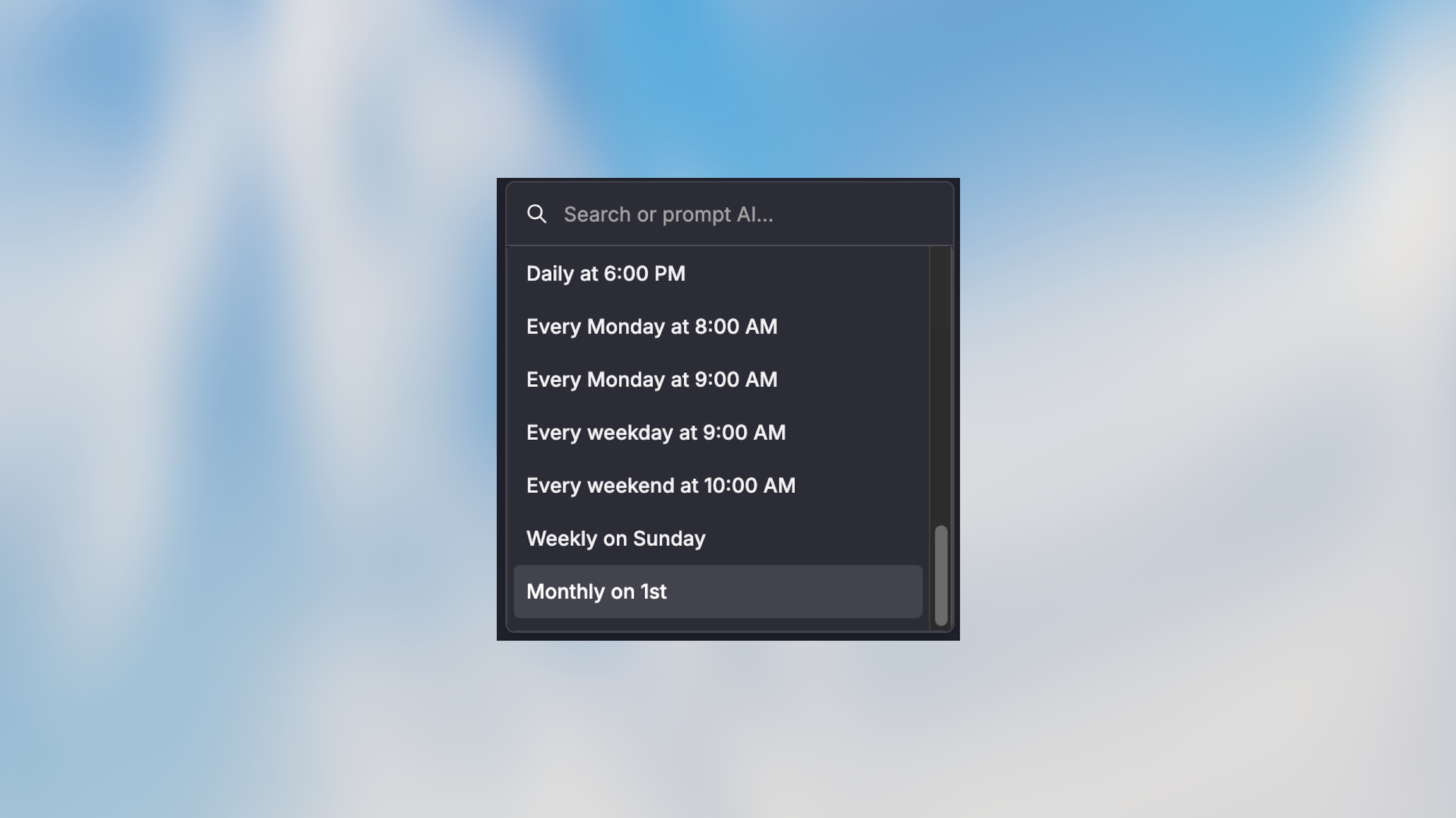
Quick Schedules (Visual Builder)
Every few minutes
Every hour
Every day at specific time
Every week on specific days
Every month on specific date
Prompt custom time interval
Timezone
Set the timezone for your schedule:
Defaults to your account timezone
Supports all standard timezones
Critical for globally distributed teams
Example Use Cases
Daily Sales Report
Hourly Data Sync
Weekly Cleanup Task
Monthly Billing
Testing Scheduled Workflows
Manual Test Runs
Best Practices
Choose Off-Peak Hours Schedule resource-intensive workflows during off-peak hours (nights, weekends) to minimize impact on systems.
Add Error Notifications Always include error notifications for scheduled workflows. You won’t be watching when they run.
Handle Missed Runs If your system is down during a scheduled run, decide if you need to catch up or skip the missed execution.
Test Timing Logic Test your workflow with different timestamps to ensure time-based logic works correctly (e.g., end of month, leap years).
Set Reasonable Intervals Don’t schedule more frequently than needed. Every 5 minutes might be excessive—consider if hourly would work.
Monitor Execution Times Track how long your scheduled workflows take. If execution time is close to the interval, you risk overlaps.
Troubleshooting
Next Steps
Was this page helpful?
Yes No