

Manual Trigger
Overview
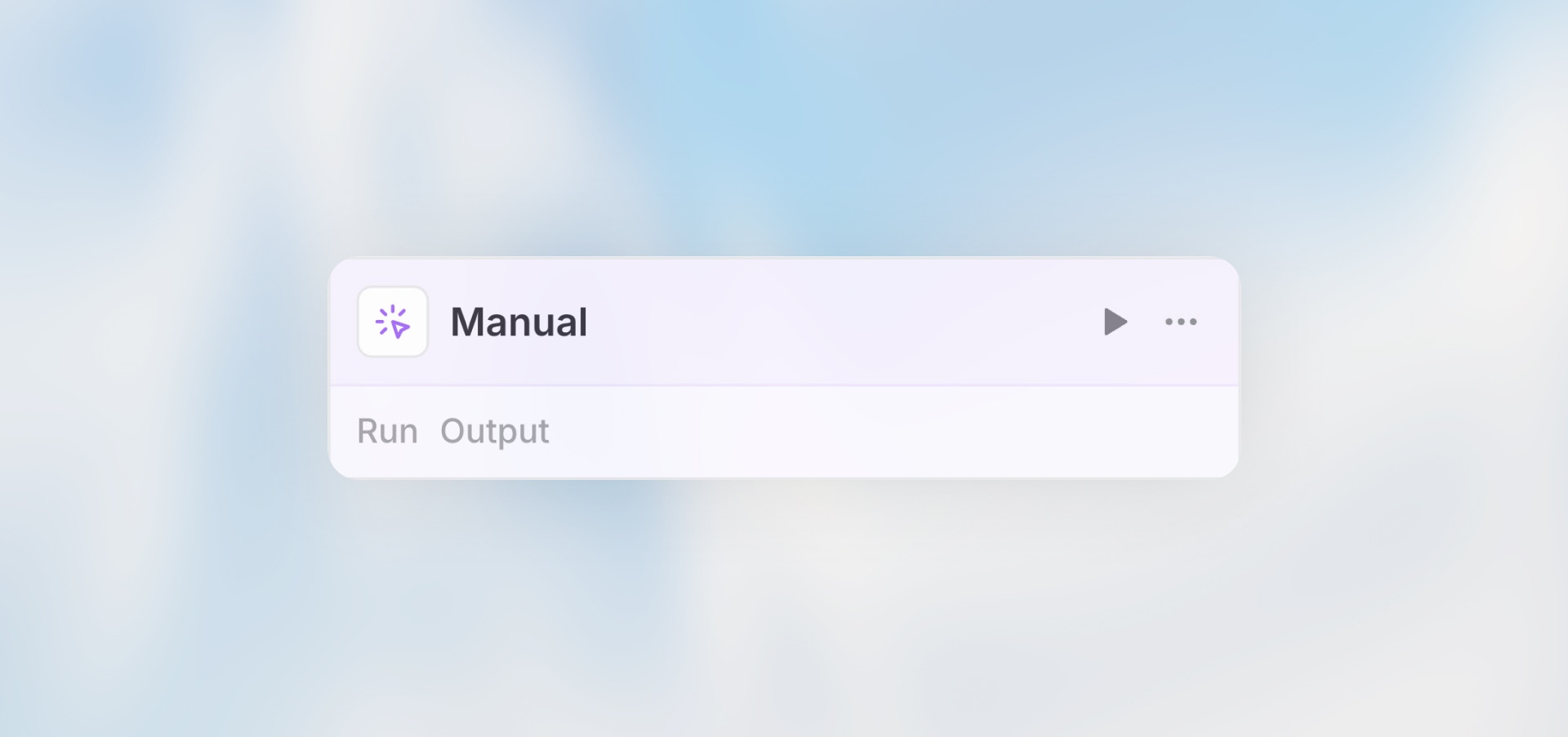
The Manual Trigger allows you to start workflows on-demand with a button click. It’s the simplest trigger type — perfect for testing workflows during development or for workflows that should only run when explicitly invoked.
Best for: Testing workflows, ad-hoc data processing, and workflows that require human initiation.
When to Use Manual Trigger
Perfect for:
Testing and debugging workflows during development
On-demand data processing that requires human judgment
Workflows triggered by users through your application
Administrative tasks that should be manually initiated
Not ideal for:
Automated, recurring processes (use Scheduled Trigger)
Responding to external events (use Webhook or Integration Trigger)
Collecting data from users (use Form Trigger)
Configuration
The Manual Trigger requires no configuration — it’s ready to use immediately.
Example Use Cases
Ad-Hoc Data Analysis
Administrative Tasks
Testing Integrations
Use the Manual Trigger for initial development and testing of all workflows, even if you plan to switch to a different trigger type later.
Limitations
No Automation: Requires human action to initiate
No Scheduling: Cannot run on a regular schedule
No Event Response: Cannot react to external events or integrations
Best Practices
Use for Development First Start every workflow with a Manual Trigger during development. Once tested and working, switch to the appropriate automated trigger type.
Add Clear Input Labels If your workflow needs input data, use clear field labels and descriptions so users know exactly what to provide.
Document Expected Usage Add a workflow description explaining when and why someone should manually trigger it.
Consider Access Control Manual triggers can be run by anyone with access to the workflow. Use sharing settings to control who can execute them.